
How to set up Tax rate?
Tax rates determine the percentage of a customer’s purchase that must be paid to the government. Setting up correct tax rates ensures compliance with local regulations and provides transparency to customers.
eCommerce enables you to create and manage location-based tax rates — automatically applying the correct tax percentage based on the customer’s region or shipping destination.
Understanding Tax Rates
A tax rate is a percentage applied to the sale of goods or services. Depending on your country’s regulations, taxes may be included in the displayed price or added at checkout.
Tax Display Differences by Country
| Region | Tax Conversion | Display Example |
|---|---|---|
| European Union, Japan, Australia | Prices include VAT | €20 (includes 25% VAT) |
| United States, Canada | Taxes added at checkout | $20 + applicable sales tax |
Include Taxes in Product Prices
If you want your product prices to display tax-inclusive amounts, you can enable this option in your settings.
To include tax in prices:
- Log in to your eCommerce admin panel.
- Navigate to Settings → % Taxes.
- Select Include tax in prices.
When enabled, product prices will display with taxes included. During checkout, the system will automatically calculate and display the tax portion.
Example Scenarios
Prices Include Tax:
|
For Danish customers:
For US customers:
|
Both pay €20, but the tax structure differs. This model provides price transparency and complies with EU VAT-inclusive pricing laws. |
| Prices Exclude Tax | If taxes are added at checkout, your product might be listed as €16, and Danish customers will pay €20 after the 25% VAT is applied. | This setup is common for B2B stores or in regions where displaying prices without tax is a standard practice. |
| Tax inclusion based on customer location |
|
You can configure your store to include or exclude taxes automatically depending on the customer’s shipping destination. |
This setup ensures compliance and fairness while automatically adapting to customer geography.
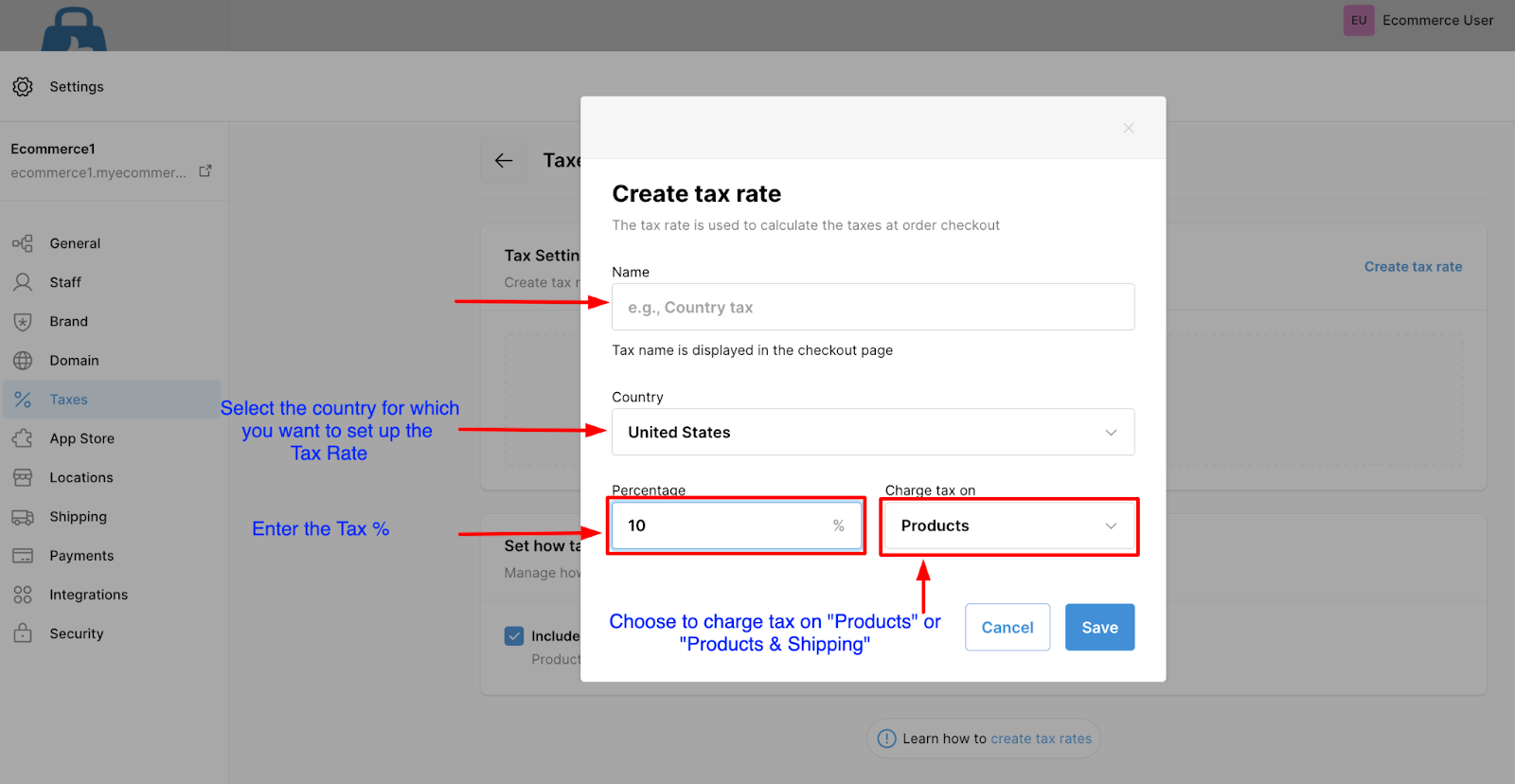
How to Create a Tax Rate
- Log in to your eCommerce admin panel.
- Navigate to Settings → Taxes.
- Click Create Tax Rate.
- Enter a name for your tax rate (this appears at checkout).
- Select the country (and region, if applicable).
- Enter the tax percentage (e.g., 25%).
- Choose how to apply the tax:
- Products only – Excludes shipping from taxation.
- Products and shipping – Includes shipping in the taxable amount.
- Click Save.
⚠️ Tax rules vary by country. Some regions require taxing shipping, while others don’t. Adjust settings according to your compliance needs.
Formula for VAT Calculation
If you know the gross (tax-inclusive) price and want to calculate VAT:
For example, for a 25% VAT:
- If no tax rate is created, customers will not be able to complete checkout.
- Once a tax rate is added, eCommerce automatically applies the correct tax based on customer location and your store’s configuration
- Always consult a certified tax consultant to ensure compliance with your country’s tax regulations.