
Connecting Google Analytics to your eCommerce store
Google Analytics is a powerful analytics platform that allows you to collect valuable data from your online store. With these insights, you can understand how customers discover your store, how they behave on your website, and what drives conversions. This helps you make informed decisions, optimize performance, and improve your overall eCommerce strategy.
To integrate Google Analytics with your eCommerce store, you will need your unique Google Analytics Measurement ID (also called the Google Tag ID). This ID links your store to your Google Analytics property and enables accurate data tracking.
Connect Google Analytics to your eCommerce Store
Before you begin, ensure you have created your Google Analytics account and GA4 property. If not, follow the setup steps: Set up Google Analytics 4 (GA4) for your online store below.
Steps to connect Google Analytics:
- Log in to your eCommerce Admin Panel.
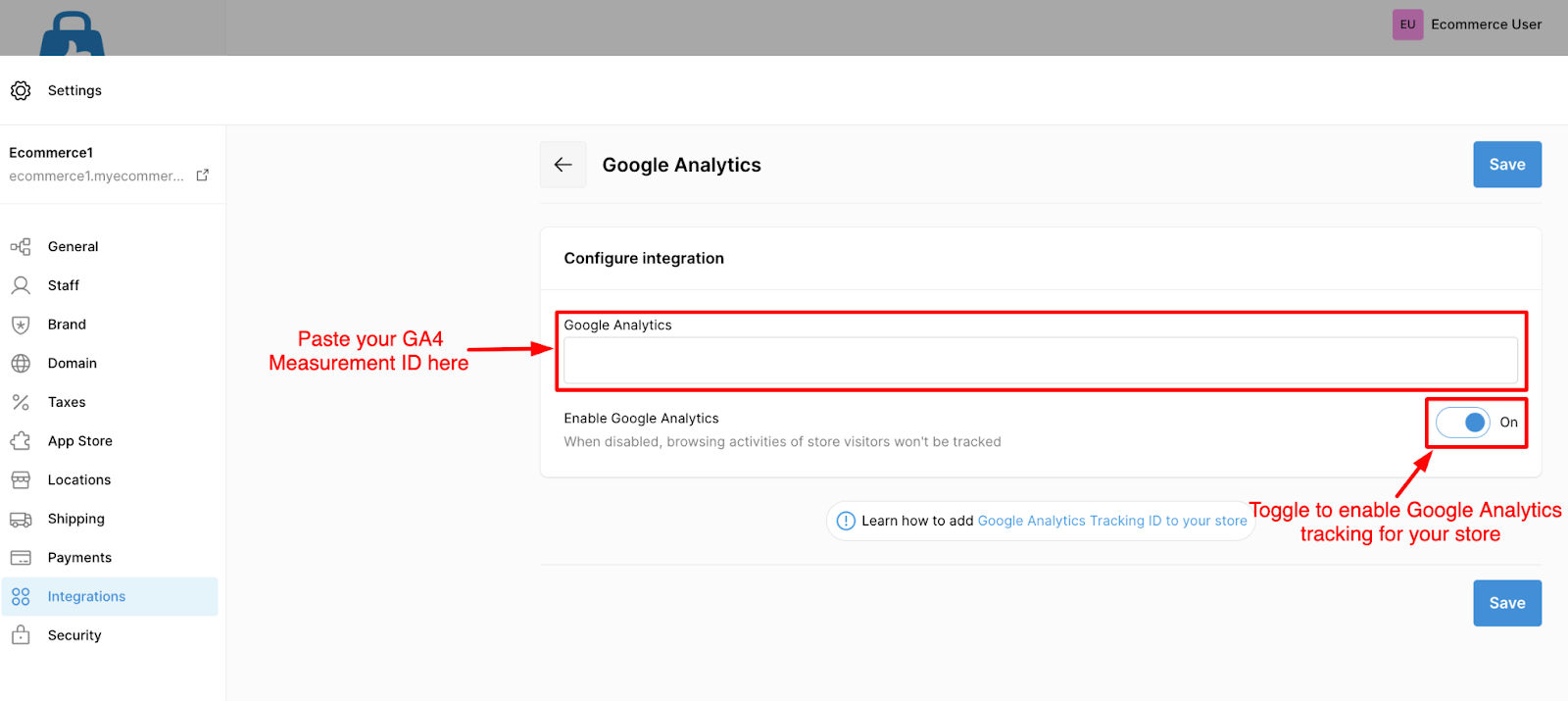
- Navigate to Settings → Integrations.
- Click the Add button next to Google Analytics.
- Paste your Measurement ID (format: G-XXXXXXX) or GT- ID (for properties created after July 2022).
- Click Save.
That’s it — your Google Analytics is now connected to your eCommerce store.
Set up Google Analytics 4 (GA4) for your Online Store
As of July 1, 2023, Universal Analytics (UA) no longer collects data. Google now requires all users to track with Google Analytics 4 (GA4).
If you are still using UA, make sure to migrate to GA4.
Steps to create a GA4 property:
- Go to your Google Analytics Admin page.
- Under the Account tab, enter your account name.
- Under the Property creation tab, enter the property name that holds all your measurement data for any selection of websites. Ex: My Store.
- Select your reporting time zone and currency.
- Select your reporting time zone and currency.
- Click Next, choose your industry category and business size.
- Click Next, then select how you plan to use Google Analytics.
- Click Create and accept the Terms of Service (if prompted).
- Under Property → Data Streams, click Add Stream.
- Select Web (recommended for online stores).
- Follow the prompts to complete the setup.
Your GA4 property will appear similar to: Property Name – GA4 (123456789)
How to find your Google Tag ID (Measurement ID)
Follow these steps to locate your Google Tag ID:
- Sign in to your Google Analytics account.
- Click Admin from the left menu.
- At the top of the Property column, select your GA4 property.
- Click Data Streams, then choose your Web Stream.
- Scroll to the Google Tag section and click Configure Tag Settings.
-
Under your Google Tag, you will see an ID starting with:
- G-XXXXXXXX (GA4 Measurement ID)
- AW-XXXXXXXX (used for Ads/remarketing setups)
Copy this ID and paste it into your eCommerce admin under: Settings → Integrations → Google Analytics