Setting up paystack payment gateway
Paystack is a leading payment solution across Nigeria, Ghana, Kenya, and South Africa, helping businesses accept secure online payments with ease. It supports multiple payment channels including cards, bank transfers, mobile money, USSD, and more — making it an excellent choice for stores serving African markets.
This guide will help you configure and activate the paystack payment gateway in your store’s admin panel.
Why use Paystack?
By managing accurate location data, sellers can:
- Accepts payments from Visa, Mastercard, Verve, and (country-dependent) American Express.
- Supports local payment methods such as bank transfers, mobile money, USSD, EFT, and Visa QR.
- Enables businesses to accept payments from global customers — cards issued worldwide.
- Allows creation of payment pages to receive payments through links.
- Fast, secure processing with a powerful merchant dashboard.
- Supports multiple African currencies: GHS, NGN, ZAR, KES, USD (country-specific).
Supported payment methods by country
Nigeria
|
Ghana
|
South Africa
|
Kenya
|
| Country | Supported currencies |
|---|---|
| Ghana | GHS |
| Nigeria | NGN, USD |
| South Africa | ZAR |
| Kenya | KES, USD |
Steps to integrate Paystack payment gateway
Step 1: Navigate to payment settings
- Log in to your eCommerce admin panel.
- Go to Settings → Payments.
- Click add payment method.
Step 2: Select Paystack
- If your store’s currency is supported by Paystack, you will see Paystack in the list of payment providers.
- Select Paystack to proceed.
If Paystack does not appear, your store currency may not be supported. See Paystack isn’t available with your store currency below.
Step 3: Enable Paystack
- In the “Enable payment method” section, turn ON the toggle to activate Paystack.
Step 4: Enter your Paystack Secret Key
You will need your Secret Key from your Paystack dashboard:
- Log in to your Paystack dashboard.
- Go to Settings → API keys & webhooks.
- Copy the secret key.
- Paste it into the secret key field in the admin Panel.
- Click submit.
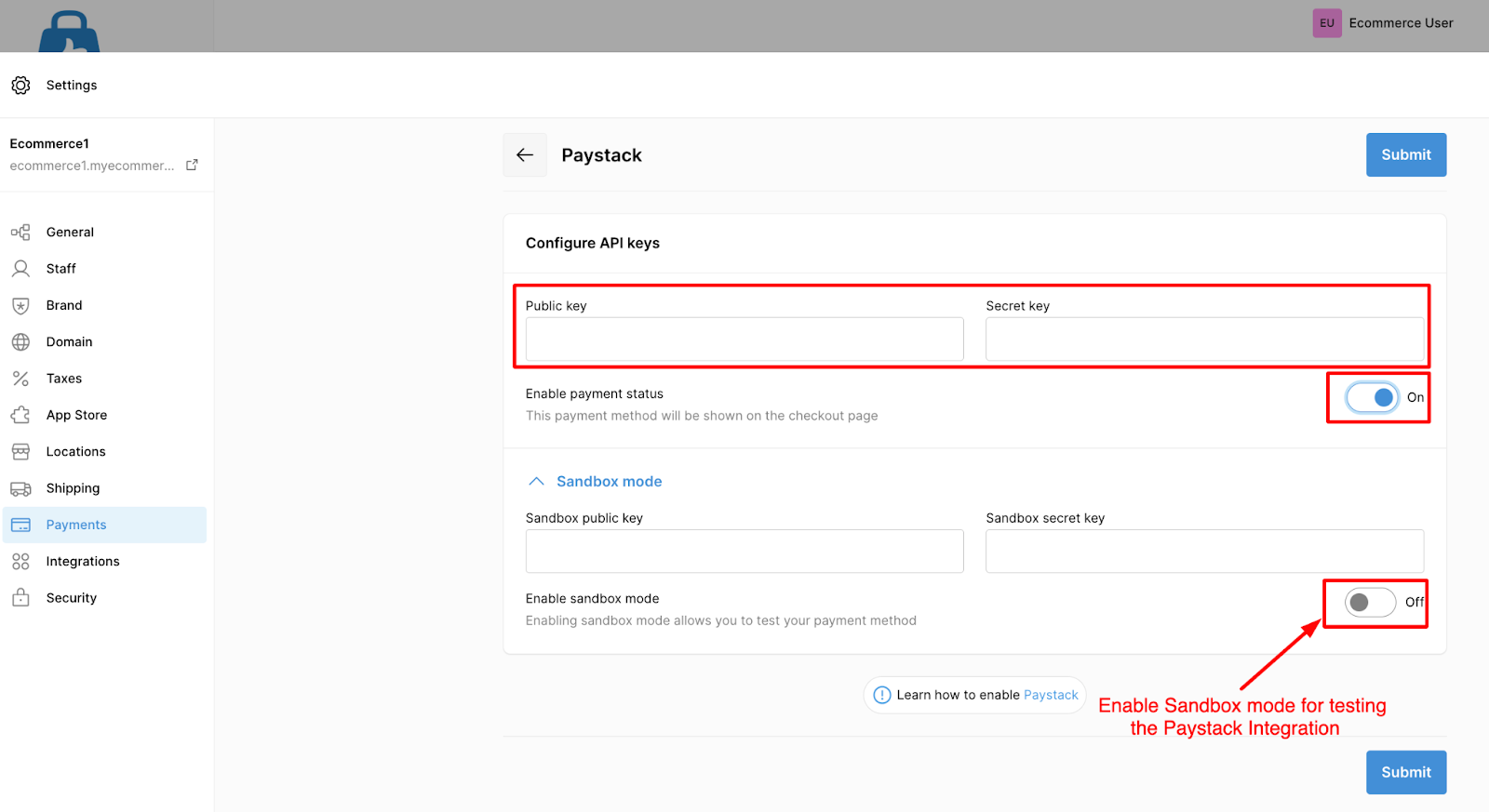
Step 5 (Optional): Enable sandbox mode for testing
To test the integration before going live:
- Click more options on the paystack setup page.
- Turn on the toggle for sandbox mode.
- Enter your Test secret key from paystack.
- Save your changes.
This allows you to run test transactions at checkout.
Paystack isn’t available with your store currency
If Paystack does not appear among payment providers, it means your store’s current currency is not supported.
To enable Paystack, change your store currency to any of the supported ones: GHS, NGN, ZAR, KES, USD (depending on your target region).
How to change your store currency
- Go to Settings → General in your admin panel.
- Click Standards and Formats.
- Choose a Paystack-supported currency from the Currency dropdown menu.
- Save your changes.