
-
Integrations
- Articles coming soon
-
Marketing
-
- Advertising white-label eCommerce solution to your customer ecosystem
- Advertising compliance and brand usage guidelines for partners
- How to create high-converting advertisements for your eCommerce platform
- How to run advertising campaigns to attract online merchants and resellers
- How to measure advertising performance and generate qualified merchant leads
-
- How to promote your eCommerce platform using consistent branding
- White-Label eCommerce branding strategy for partners
- Crafting effective brand messaging for eCommerce platforms
- Positioning your eCommerce platform for different merchant segments
- Maintaining brand consistency across marketing channels
-
- Creating High-Impact eCommerce marketing assets for partners
- Designing eCommerce sales decks that convert merchants
- Creating eCommerce landing pages that convert traffic into merchants
- Creating eCommerce case studies that build trust and close deals
- Creating Email campaigns that drive eCommerce adoption
-
-
Partner Hub
-
- Articles coming soon
-
- Articles coming soon
-
-
Sales
-
- Articles coming soon
-
- Articles coming soon
-
- Articles coming soon
-
- Articles coming soon
-
- Articles coming soon
-
-
Technical and Support
-
- Articles coming soon
-
- Articles coming soon
-
- Articles coming soon
-
- Articles coming soon
-
- Articles coming soon
-
- Articles coming soon
-
-
-
-
-
-
-
- Payment methods at eCommerce Store
- Setting up Stripe Payment Gateway
- Setting up Paypal in your Online Store
- Setting up CashFree Gateway
- Setting up RazorPay Gateway
- Setting up Paystack gateway
- Setting up Flutterwave Gateway
- Setting up Mercado Pago Gateway
- Setting up Mamo Pay Gateway
- Setting up Yoco Gateway
- Setting up Nets Easy Gateway
- Setting up Vipps Gateway
- Setting up Mollie Gateway
- Setting up Epoint Gateway
- Setting up Iyzico Gateway
- Setting up Payriff Gateway
- Setting up Crypto Payments through Nicky
- What is Cash on Delivery?
- Show Remaining Articles (3) Collapse Articles
-
- How to create an analytics account?
- Connecting Google Analytics to your eCommerce store
- Connecting Meta Pixel to your eCommerce store
- Connecting Tik Tok Pixel to your eCommerce store
- Connecting Google Tag Manager to your eCommerce store
- Managing product reviews & ratings in your eCommerce store
- Using marketing automation to drive urgency and social proof
- Setting up your LLMs.txt integration to boost your AI search visibility
- Automating manual order fulfilment and live tracking with Shiprocket
- Automating search engine discoverability with dynamic sitemaps
- Automate, optimise, scale: Building your Google shopping product feed
- How to sync your product catalog with meta ads to drive more sales
-
- Articles coming soon
-
- Articles coming soon
-
- Articles coming soon
-
Print
Posted
Updated
ByeCommerce Admin
Setting up Epoint Payment Gateway
Epoint is a secure electronic payment system based in Azerbaijan, enabling users to make online payments for goods and services. Designed to support safe and seamless digital transactions, Epoint is widely used by businesses operating within Azerbaijan’s e-commerce ecosystem.
How to set up Epoint Payment Gateway
Step 1: Open Payment Settings
- Log in to your eCommerce admin panel.
- Navigate to Settings → Payments.
- Click Add payment method.
Step 2: Select Epoint
- If your store currency is supported, select Epoint as your payment provider.
- If Epoint does not appear, refer to the “Epoint isn’t available with your store currency” section.
Step 3: Enable the Payment Method
- Toggle the Enable payment method switch.
Step 4: Add Epoint Credentials
- Enter your Public Key and Private Key from your Epoint account.
- Click Submit to save the settings.
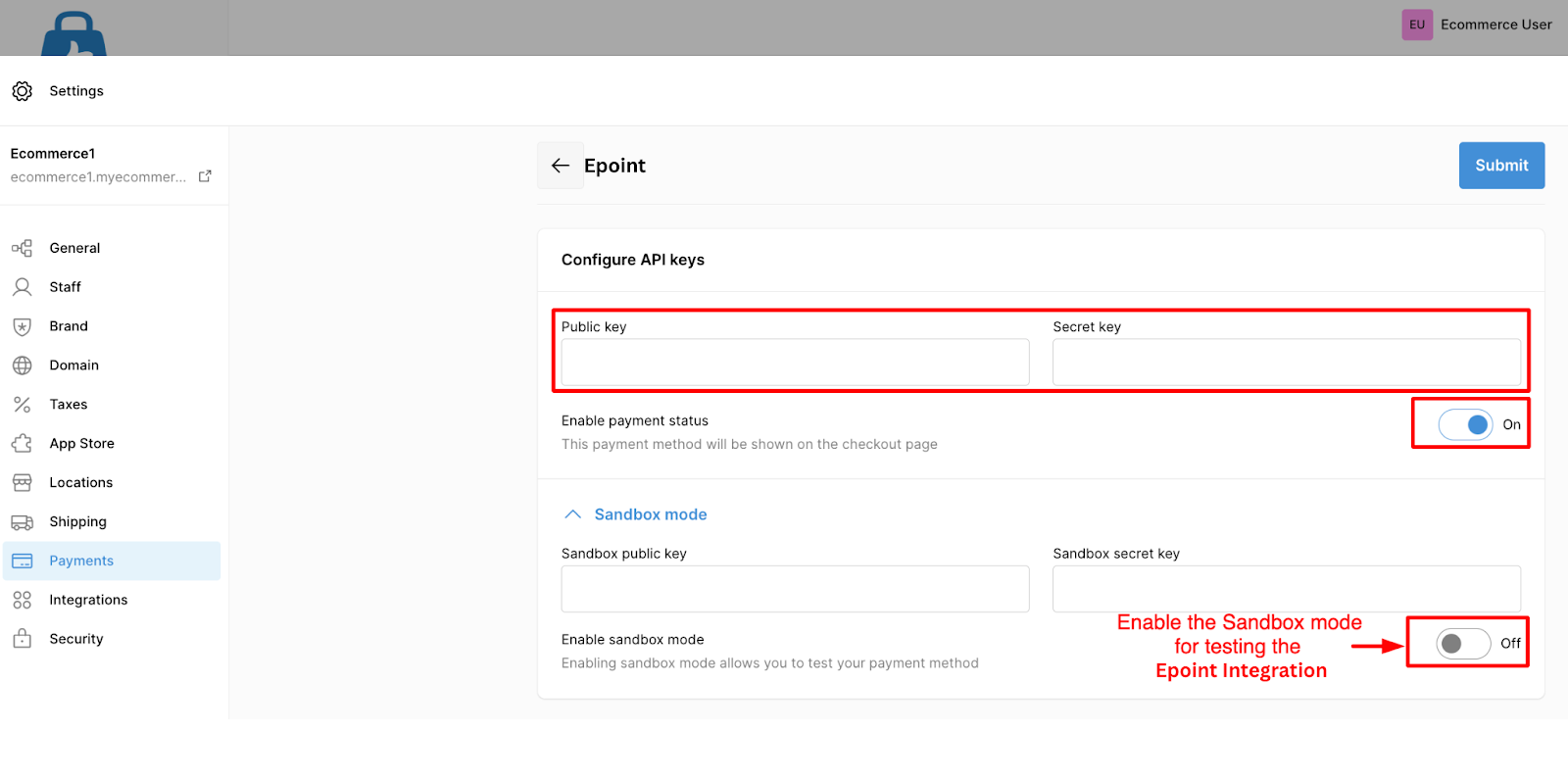
About Epoint Public and Private Keys
Before your keys can be generated, your online store must fully comply with Epoint’s internal verification rules.
Information required by Epoint
To configure your merchant account in the Epoint system, you must provide:
- Your website address
- Success URL — Page shown after a successful payment
- Error URL — Page shown after an unsuccessful payment
- Result URL — Endpoint where Epoint sends final payment status updates
After reviewing these details, Epoint will issue your access keys:
| public_key — Your Merchant ID | private_key — Secret API access key |
How to generate your Public and Private Keys in Epoint
- Log in to your Epoint dashboard.
- Go to API Management → Connection options.
- Provide the required four links:
- Website address
- Success URL
- Fail/Error URL
- Result URL
- Click Save to submit your configuration.
Notes:
- If you plan to add a custom domain to your eCommerce store, do this before connecting to Epoint.
- If you switch from a default eCommerce domain (e.g., yourstore.myecommerce.com) to a custom domain later, update the URLs in Epoint as well.
- After submitting your URLs, allow up to 24 hours for Epoint to verify the details and generate your keys.
Epoint supported Currencies
| Currency Name | Currency Code |
|---|---|
| Azerbaijani Manat | AZN |
Epoint isn’t available with your Store Currency
If Epoint is not visible in the payment provider list, your store currency is likely not supported. To enable Epoint, you must change your store’s currency to AZN.