
Setting up Paypal in your Online Store
PayPal is a widely used and trusted payment provider that enables merchants to accept payments from multiple sources, including credit and debit cards, bank transfers, and PayPal account balances.
To activate PayPal in your online store, you must have both:
- An eCommerce store account
- A PayPal account
PayPal fees typically begin at 3.49% + $0.49 per transaction, and may vary depending on your country and transaction type.
Refer to PayPal’s fees and PayPal’s FAQs for more details.
How to set up PayPal in your Online Store
- Log in to your eCommerce admin panel.
- Navigate to Settings → Payments.
- Click “Add payment method.”
- If PayPal supports your store’s currency, select PayPal from the list.
- In the Enable payment method section, switch the toggle ON to activate PayPal.
- Enter your “Public Key” and “Secret Key” from your PayPal account.
- Click Submit.
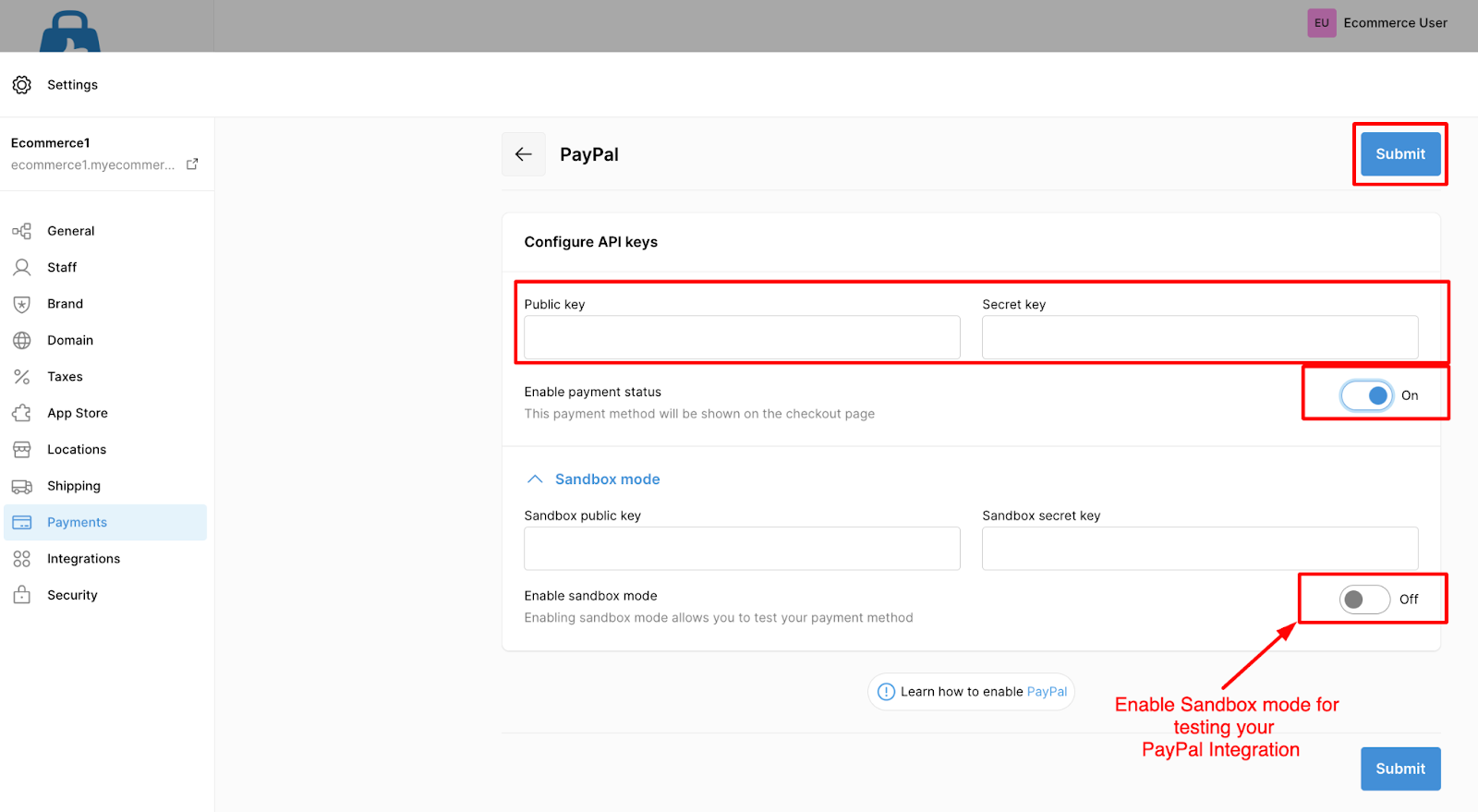
Enable Sandbox Mode (Testing Environment)
Sandbox mode allows you to test payments without real transactions.
To enable:
- On the PayPal configuration page, turn on the Sandbox mode toggle.
- Enter your Test Public Key and Test Secret Key in the respective input fields.
PayPal Supported Currencies
PayPal supports a wide range of currencies, depending on the country associated with your PayPal account.
Below is a non-exhaustive list of currencies supported by PayPal:
| Currency Name | Currency Code |
|---|---|
| Australian dollar | AUD |
| Brazilian real ² | BRL |
| Canadian dollar | CAD |
| Chinese Renmenbi ³ | CNY |
| Czech koruna | CZK |
| Danish krone | DKK |
| Euro | EUR |
| Hong Kong dollar | HKD |
| Hungarian forint ¹ | HUF |
| Israeli new shekel | ILS |
| Japanese yen ¹ | JPY |
| Malaysian ringgit ³ | MYR |
| Mexican peso | MXN |
| New Taiwan dollar ¹ | TWD |
| New Zealand dollar | NZD |
| Norwegian krone | NOK |
| Philippine peso | PHP |
| Polish złoty | PLN |
| Pound sterling | GBP |
| Russian ruble | RUB |
| Singapore dollar | SGD |
| Swedish krona | SEK |
| Swiss franc | CHF |
| Thai baht | THB |
| United States dollar | USD |
- Currencies marked ¹ do not support decimals. Passing decimal values may cause an error.
- Currencies marked ² or ³ are supported only for in-country PayPal accounts.
- For example, BRL and MYR require the receiver to also have an in-country account.
- If the receiver is outside that country, PayPal automatically converts the amount using PayPal’s applicable conversion rate and fees.
PayPal isn’t available with your Store Currency
If PayPal does not appear as an available payment provider, the most common cause is store currency incompatibility.
To use PayPal, you must change your store’s currency to one that PayPal supports.
How to change your Store’s Currency
- Go to Settings → General in the admin panel.
- Click Standards and formats.
- From the Currency dropdown, select a PayPal-supported currency.