How to securely connect your external AI assistant to your store dashboard
Transitioning your store management from traditional, multi click navigation to a conversational interface requires a powerful data bridge. By connecting an external AI assistant (such as Claude) directly to your storefront, you transform the AI from a passive chatbot into an active, operational agent.
The Model Context Protocol (MCP) serves as this critical bridge. Rather than relying on outdated data pipelines, this system acts as the intelligent hub of your store’s backend architecture. It allows the AI to read live inventory, process orders, and manage complex API driven updates entirely through natural language commands, saving your team countless administrative hours while maintaining complete data security.
Understanding the secure handshake
Connecting an external AI to your live eCommerce database might sound intimidating, but the infrastructure is built on enterprise grade security standards. Here is how the integration protects your business:
- Zero credential exposure: There are absolutely no merchant username or password fields within the AI assistant’s interface.
- OAuth 2.0 + PKCE authentication: The connection utilizes a secure OAuth 2.0 protocol paired with PKCE (Proof Key for Code Exchange). This means the AI and your storefront authenticate each other through a secure token exchange rather than sharing raw login credentials.
- Encrypted data transport:All conversational commands and data retrievals are transmitted via Streamable HTTP (POST) requests, ensuring 100% encryption in data transfer.
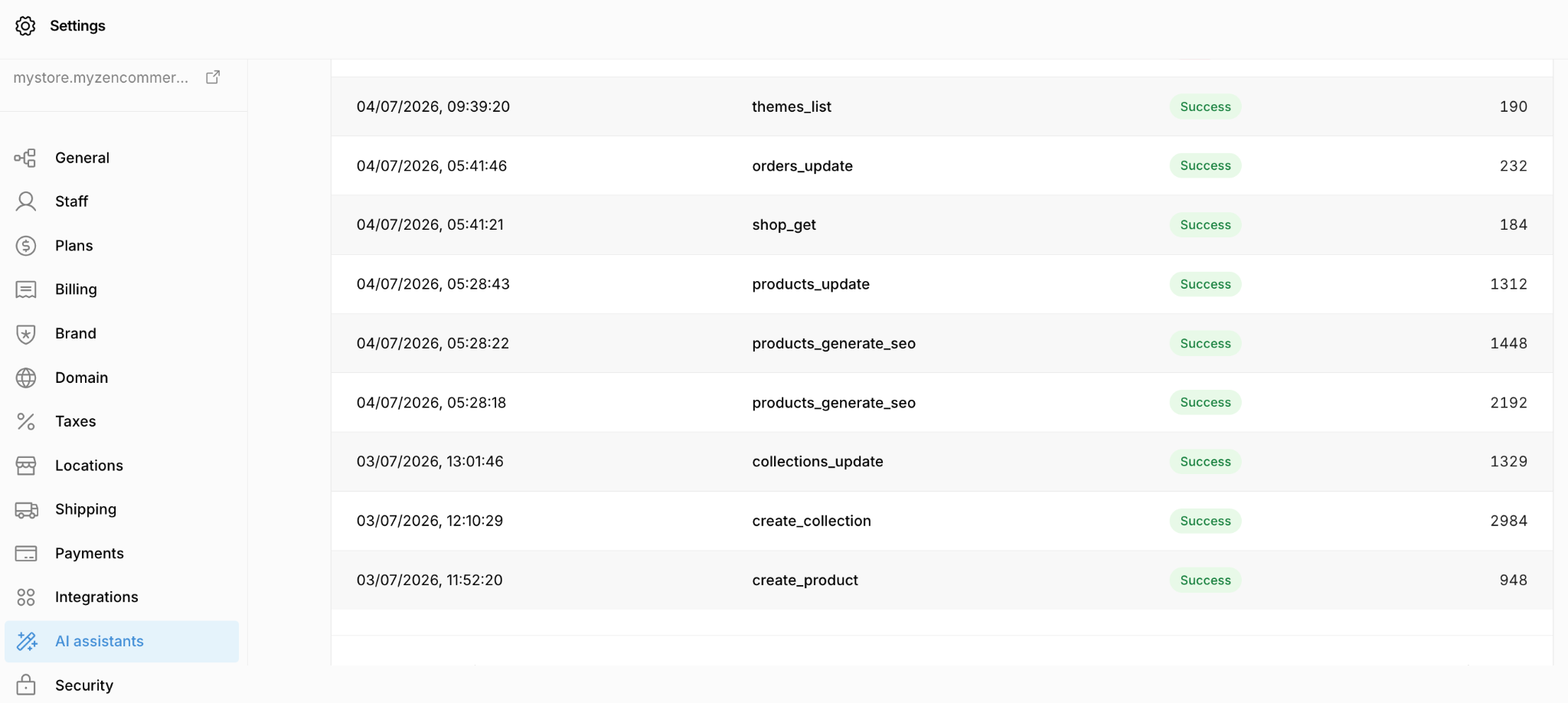
- Live audit trails: Every single action the AI executes on your behalf is recorded. All tool activity automatically appears in your admin activity log, providing a transparent 30 day history of automated operations.
Step by step connection guide
Establishing the secure link between your storefront and your AI workspace is a one time process. For the authentication to succeed, you must perform these steps in the exact same web browser.
- Open your storefront admin panel and login, in the same web browser you use for your AI assistant (e.g., claude.ai).
Note: Using an incognito window or a separate browser for the admin login will cause the secure handshake to fail.
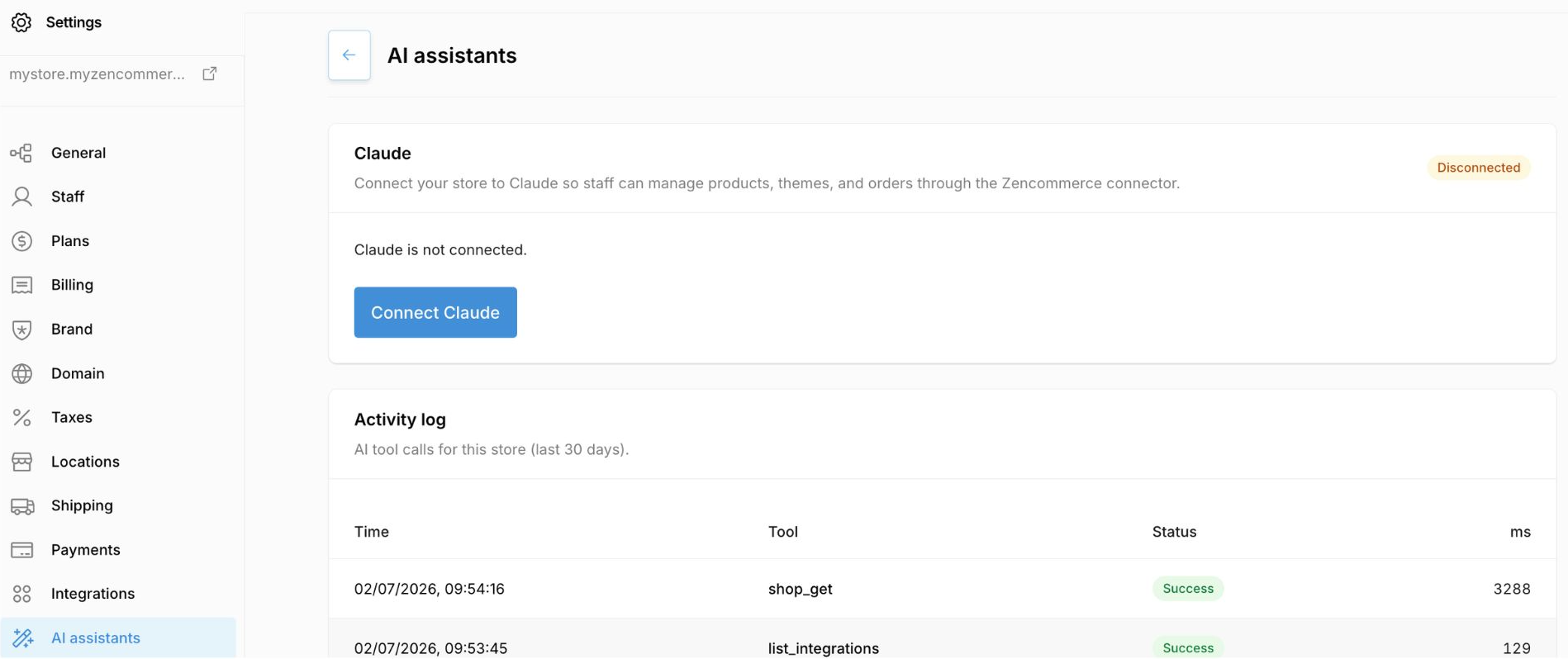
- In your storefront admin, navigate to Settings → AI assistants → Connect Claude and approve the requested operational scopes.
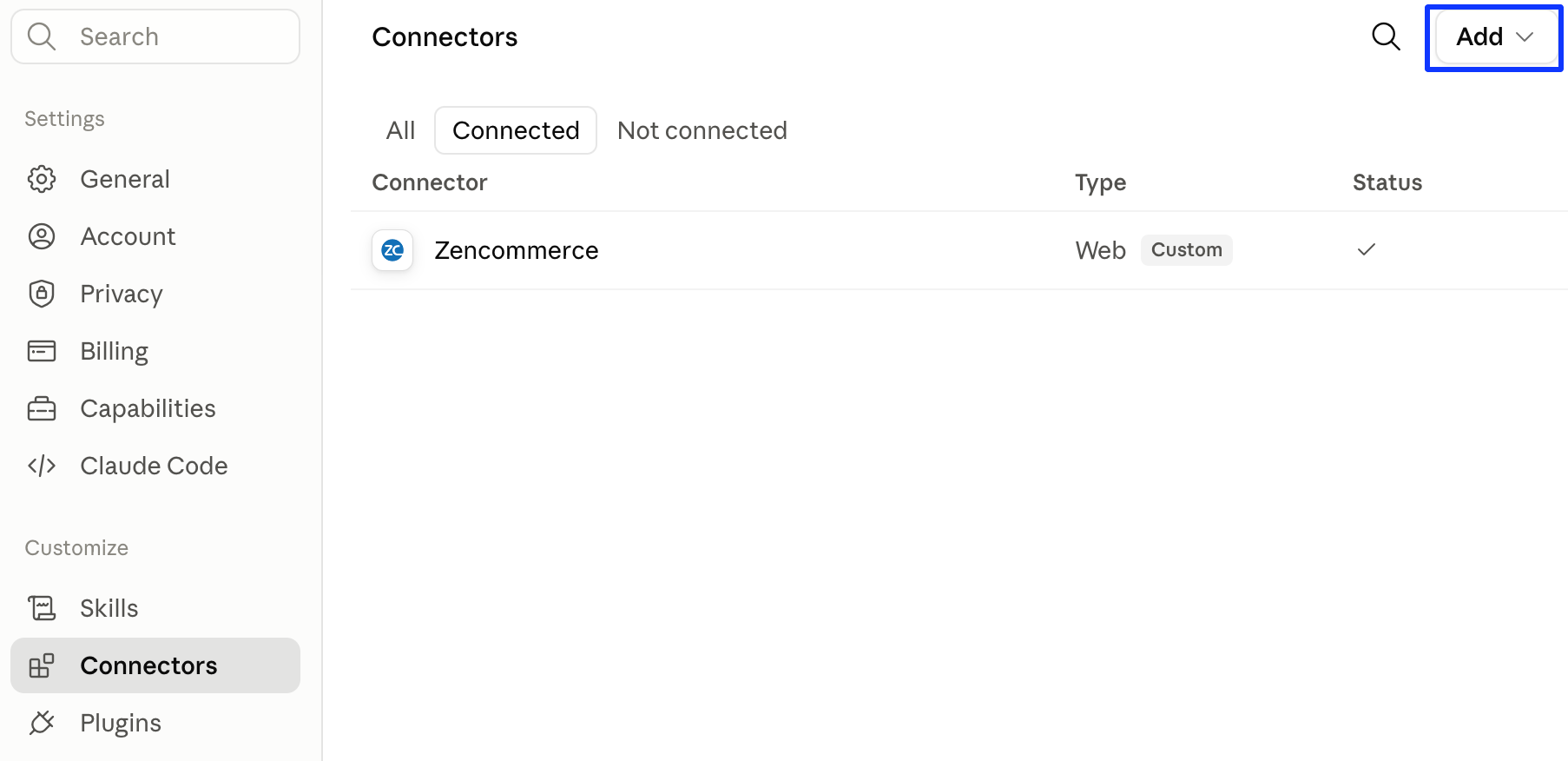
- Switch to your AI assistant’s browser tab (Claude). Navigate to its Settings → Connectors menu, and choose to “add” or “reconnect” a custom connector.
- When the secure OAuth window opens, sign in as the exact same merchant when you are prompted to do so.
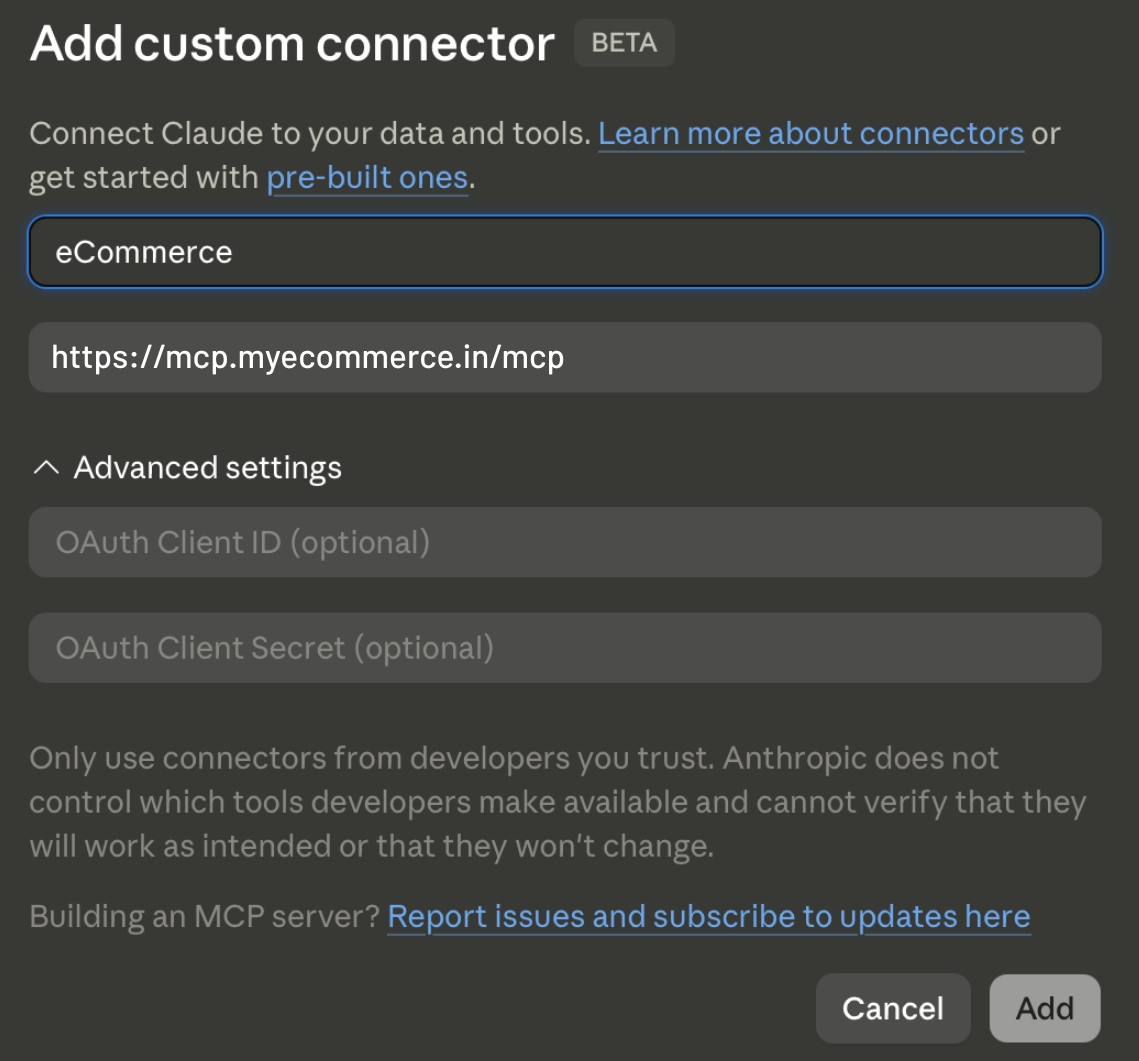
- When asked for the server URL in your AI workspace, input your designated MCP URL:
https://mcp.yourdomain.com/mcp
Ex: https://mcp.myecommerce.in/mcp.
Managing your AI connection
Once connected, your AI assistant is ready to execute commands. Maintain a secure and optimized environment by following these operational best practices.
Monitor the 30 day activity log
Make it a weekly habit to review the “Activity log” located in the “AI assistants” panel. This log explicitly tracks all automated tool calls executed for the store over the last 30 days, including the time, the specific tool used (e.g., product creation, theme updates), and the execution status. This ensures complete visibility into what your team is automating.
Reconnect to refresh capabilities
As your eCommerce platform evolves, new conversational tools and capabilities are frequently added to the MCP infrastructure. To ensure your AI assistant has access to the latest operational tools, you must periodically return to the AI’s connector settings and reconnect the custom “claude” connector. This forces the AI to refresh its tool list and clear its cache (which typically holds tools for about an hour).
Maintain revocation control
You are never locked into the automation. You maintain absolute control over the data bridge and can disconnect the connection instantly. If you need to pause conversational prompts for any reason, you can disconnect at any time by navigating directly to Settings → AI assistants → Disconnect in your storefront admin panel.