
Monitoring the AI activity log: Auditing conversational store operations
As you delegate day to day administrative tasks to an AI assistant, maintaining complete visibility becomes essential for operational excellence. Moving from traditional manual management to an automated conversational setup (AI) requires structural accountability to ensure your store runs predictably.
The built in activity log provides a transparent, automated audit trail for your storefront. By automatically recording every command the AI interprets and executes, this feature eliminates guesswork and protects your store’s integrity. It allows you to monitor backend adjustments, troubleshoot workflow issues, and ensure that your automated operations align perfectly with your business guidelines.
Understanding your system activity panel
The platform features an embedded activity panel that continuously logs the interactions between your AI workspace and your live database. Understanding these data columns helps you audit your store effectively:
- Continuous 30 day window: The system automatically captures and retains a rolling 30 day tracking history of all tool calls made by connected assistants.
- Metric tracking: Each entry in the log records four critical data points:
- Time: The exact chronological timestamp of when the conversational request was processed.
- Tool: The specific functional API code triggered by the command (such as products_create, theme_settings_save, or orders_update).
- Status: A visual health indicator confirming whether the data transaction was successful or encountered an execution block.
- Duration (ms): The processing speed measured in milliseconds, showing you exactly how efficiently the system is handling your requests.
Navigating and reading the activity log
Reviewing and managing your automated operation trail is handled directly within the storefront admin panel. Follow these steps to audit your AI connections:
- Log into your storefront admin panel and navigate to the Settings → AI assistants.
- Scroll to the bottom of the page to find the section labeled “Activity log”.
- Scan the list to review the historical commands executed by the assistant over the last 30 days.
- Look specifically at the “Status” column. A successful call means the database is updated instantly. A failed or error status indicates that the assistant received a command it did not understand or lacked the permissions to fulfill.
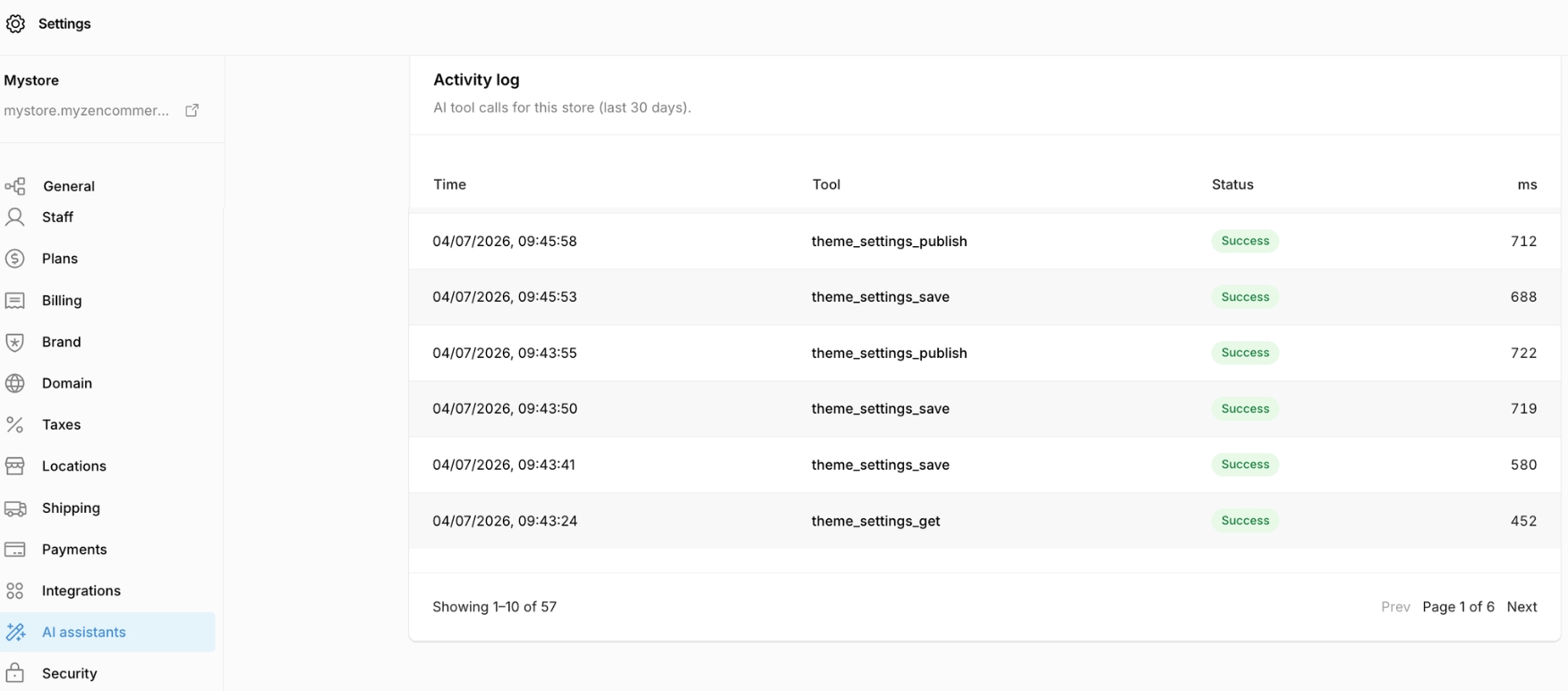
- To monitor active changes in real time, simply refresh your admin panel’s browser tab while working alongside your assistant in another window to see “new tool calls” posted immediately.
Turning logs into productivity
To keep your store running smoothly as your order volume scales, incorporate these monitoring best practices into your weekly operations.
Establish a weekly operational cadence
Treat the activity log like a standard execution log . Dedicate 10 minutes at the end of every week to review the data logs. Verify that major inventory adjustments, fulfilment or global tax rule modifications match the business guidelines authorized by you and/or your team.
Troubleshoot failed commands systematically
If you notice repetitive failures under the “status” column for a specific tool, the assistant is likely receiving vague or improperly formatted natural language instructions. You can easily correct this by checking your platform’s built in tool manual.
Example: Enter the command “Call help [tool_name]” directly into your AI chat interface to view the exact properties, required syntax, and rules needed for a flawless execution.
Analyze response time to optimize complex tasks
Pay close attention to the execution speed (ms) column. Simple operations, like checking a customer’s profile, process rapidly. However, complex operations like bulk theme updates or multi variant product creation require more processing time. Monitoring these speeds gives you a clear baseline of system performance, helping you plan large scale product catalog updates during low traffic windows.