
Setting up Flutterwave Payment Gateway
Flutterwave is a globally trusted payment gateway supporting businesses across Nigeria, Ghana, Kenya, South Africa, Uganda, Tanzania, the United States, the United Kingdom, and most of Europe.
It enables seamless acceptance of payments through local cards, mobile money, bank transfers, international cards, and other regional payment methods.
Flutterwave allows merchants to receive payments from MasterCard, Visa, and local cards across supported regions.
This guide explains how to activate and integrate Flutterwave Payment Gateway in your store’s Admin Panel.
Why use Flutterwave?
By managing accurate location data, sellers can:
- Accept payments across Africa, North America, and Europe.
- Supports Visa, Mastercard, and local payment methods of supported countries.
- Provides secure online payment processing.
- Offers Test (Sandbox) and Live modes for easy setup and validation.
- User-friendly dashboard with advanced reporting and fraud protection.
- Wide range of supported currencies (USD, GBP, NGN, GHS, KES, ZAR, and more).
Steps to integrate Flutterwave Payment Gateway
Step 1: Navigate to Payment Settings
- Log in to your eCommerce Admin Panel.
- Go to Settings → Payments.
- Click Add Payment Method.
Step 2: Select Flutterwave
- From the list of available payment providers, select Flutterwave.
- If Flutterwave is not shown, your current store currency may not be supported (see below).
Step 3: Enable Flutterwave
- Turn on the Enable Payment Method toggle.
Step 4: Enter your Secret Key
To integrate Flutterwave, you will need your Live Secret Key.
How to obtain your API Keys
For first-time Setup
- Log in to your Flutterwave Dashboard.
- Navigate to Settings → Developers → API Keys.
- This page displays:
- Test API Keys
- Live Public Keys
- Click Generate Secret Key to obtain your Live Secret Key.
- A 7-digit authentication code will be emailed to you.
- Enter the code to generate your Live Secret Key.
To regenerate API keys
If you already have keys but want to generate new ones:
- Go to Settings → Developers → API Keys.
- Click Generate Secret Key.
- Select the expiry period for current keys.
- Enter the 7-digit authentication code sent to your email.
- New API keys will be generated.
Once you have the Live Secret Key:
- Enter it in the Secret Key field in your Admin Panel.
- Click Submit.
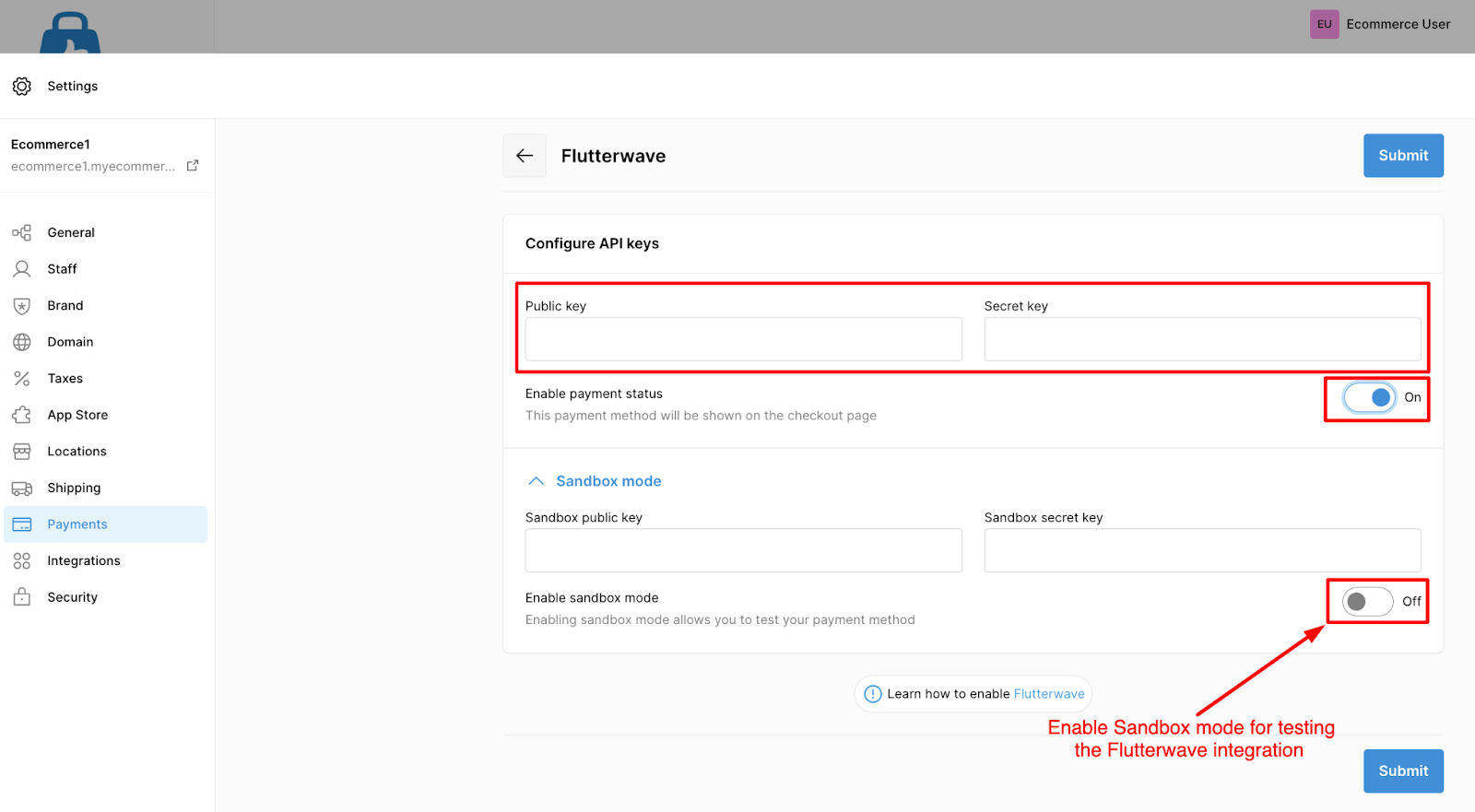
You can test Flutterwave integration before going live:
- Click More Options on the Flutterwave payment setup page.
- Enable the Sandbox Mode toggle.
- Enter your Test Secret Key from the Flutterwave dashboard.
- Save your changes to test transactions at checkout.
Flutterwave supported Currencies
Flutterwave supports a wide range of global currencies:
| Currency Name | Code |
|---|---|
| United States Dollar | USD |
| British Pound Sterling | GBP |
| Canadian Dollar | CAD |
| Central African CFA Franc | XAF |
| Chilean Peso | CLP |
| Colombian Peso | COP |
| Egyptian Pound | EGP |
| Euro (SEPA) | EUR |
| Ghanaian Cedi | GHS |
| Guinean Franc | GNF |
| Kenyan Shilling | KES |
| Malawian Kwacha | MWK |
| Moroccan Dirham | MAD |
| Nigerian Naira | NGN |
| Rwandan Franc | RWF |
| Sierra Leonean Leone | SLL |
| São Tomé and Príncipe Dobra | STD |
| South African Rand | ZAR |
| Tanzanian Shilling | TZS |
| Ugandan Shilling | UGX |
| West African CFA Franc (BCEAO) | XOF |
| Zambian Kwacha | ZMW |
For the latest updated list, refer to the currencies you can charge cards in Flutterwave.
Flutterwave isn’t available with your Store Currency
If Flutterwave does not appear in your list of payment methods, it means your store’s currency is not supported.
To enable Flutterwave:
- Go to Settings → General in your Admin Panel.
- Open Standards and Formats.
- Choose a Flutterwave-supported currency from the Currency dropdown.
- Save the settings.