
Setting up Mollie Payment Gateway
Mollie is a leading European payment provider that enables online businesses to accept secure and seamless digital payments. Trusted by thousands of merchants across Europe, Mollie simplifies payment processing through a wide range of supported payment methods and currencies.
Mollie allows merchants to accept payments in Austria, Belgium, France, Germany, Italy, the Netherlands, and the United Kingdom.
Supported Payment Methods
Mollie offers multiple payment options, including:
| Credit Card | PayPal | iDEAL |
| Bancontact | Sofort | SEPA Bank Transfer |
| GiroPay | ||
How to set up Mollie Payment Gateway
Before enabling Mollie in your eCommerce store, ensure:
- Your Mollie account is fully set up.
- You have activated the desired payment methods (e.g., iDEAL, Bancontact, Credit Card) in your Mollie dashboard.
Step 1: Access Payment Settings
- Log in to your eCommerce admin panel.
- Navigate to Settings → Payments.
- Click on Add payment method.
Step 2: Select Mollie
- If your store currency is supported, select Mollie from the list of payment providers.
- If not visible, refer to the “Mollie isn’t available with your store currency” section.
Step 3: Enable the Payment Method
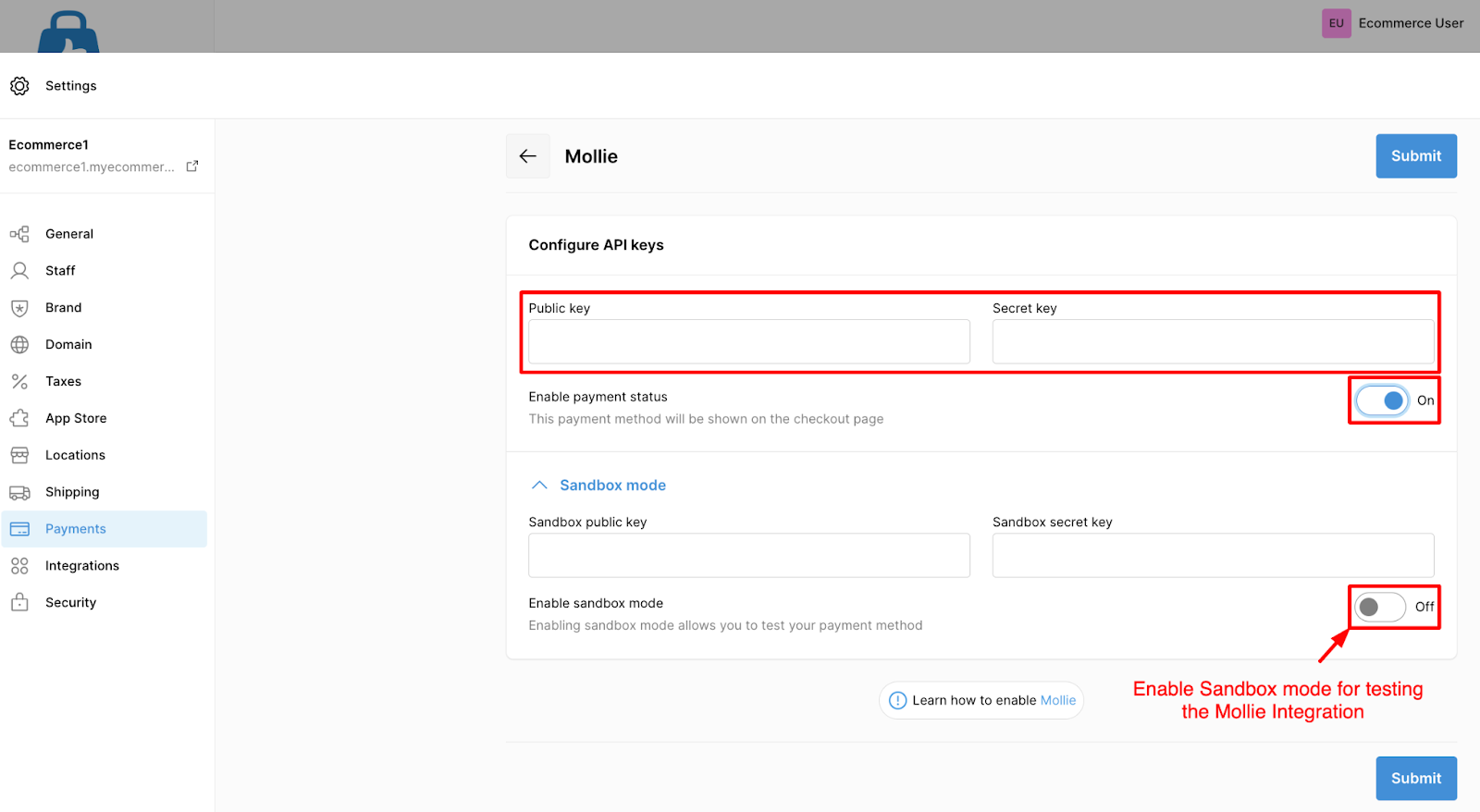
- In the Enable payment method section, toggle the switch to turn Mollie on.
Step 4: Enter Integration Credentials
Enter your Public Key and Secret Key from your Mollie account, then click Submit to save the configuration.
Optional — Test using Sandbox Mode
- Click More options on the same payment settings page.
- Toggle Sandbox mode to enable test mode.
- Enter your Test Secret Key and Test Public Key to simulate transactions at checkout.
Mollie supported Currencies
Mollie supports a wide range of global currencies. Stores can accept payments from customers using any of the currencies listed below, depending on the payment method and country.
| Currency Name | Currency Code |
|---|---|
| Euro | EUR |
| United Arab Emirates Dirham | AED |
| Australian Dollar | AUD |
| Bulgarian Lev | BGN |
| Canadian Dollar | CAD |
| Swiss Franc | CHF |
| Czech Koruna | CZK |
| Danish Krone | DKK |
| Pound Sterling | GBP |
| Hong Kong Dollar | HKD |
| Croatian Kuna | HRK |
| Hungarian Forint | HUF |
| Israeli New Shekel | ILS |
| Icelandic Króna | ISK |
| Japanese Yen | JPY |
| Norwegian Krone | NOK |
| New Zealand Dollar | NZD |
| Philippine Peso | PHP |
| Polish Zloty | PLN |
| Romanian Leu | RON |
| Russian Ruble | RUB |
| Swedish Krona | SEK |
| Singapore Dollar | SGD |
| United States Dollar | USD |
| South African Rand | ZAR |
For the most accurate and up-to-date list, refer to the Mollie documentation.
Mollie isn’t available with your Store Currency
If Mollie does not appear as a selectable payment provider, your store is likely using a currency that Mollie does not support.
To enable Mollie, you must switch your store’s currency to one of the supported options.