
-
Integrations
- Articles coming soon
-
Marketing
-
- Advertising white-label eCommerce solution to your customer ecosystem
- Advertising compliance and brand usage guidelines for partners
- How to create high-converting advertisements for your eCommerce platform
- How to run advertising campaigns to attract online merchants and resellers
- How to measure advertising performance and generate qualified merchant leads
-
- How to promote your eCommerce platform using consistent branding
- White-Label eCommerce branding strategy for partners
- Crafting effective brand messaging for eCommerce platforms
- Positioning your eCommerce platform for different merchant segments
- Maintaining brand consistency across marketing channels
-
- Creating High-Impact eCommerce marketing assets for partners
- Designing eCommerce sales decks that convert merchants
- Creating eCommerce landing pages that convert traffic into merchants
- Creating eCommerce case studies that build trust and close deals
- Creating Email campaigns that drive eCommerce adoption
-
-
Partner Hub
-
- Articles coming soon
-
- Articles coming soon
-
-
Sales
-
- Articles coming soon
-
- Articles coming soon
-
- Articles coming soon
-
- Articles coming soon
-
- Articles coming soon
-
-
Technical and Support
-
- Articles coming soon
-
- Articles coming soon
-
- Articles coming soon
-
- Articles coming soon
-
- Articles coming soon
-
- Articles coming soon
-
-
-
-
-
-
-
- Payment methods at eCommerce Store
- Setting up Stripe Payment Gateway
- Setting up Paypal in your Online Store
- Setting up CashFree Gateway
- Setting up RazorPay Gateway
- Setting up Paystack gateway
- Setting up Flutterwave Gateway
- Setting up Mercado Pago Gateway
- Setting up Mamo Pay Gateway
- Setting up Yoco Gateway
- Setting up Nets Easy Gateway
- Setting up Vipps Gateway
- Setting up Mollie Gateway
- Setting up Epoint Gateway
- Setting up Iyzico Gateway
- Setting up Payriff Gateway
- Setting up Crypto Payments through Nicky
- What is Cash on Delivery?
- Show Remaining Articles (3) Collapse Articles
-
- How to create an analytics account?
- Connecting Google Analytics to your eCommerce store
- Connecting Meta Pixel to your eCommerce store
- Connecting Tik Tok Pixel to your eCommerce store
- Connecting Google Tag Manager to your eCommerce store
- Managing product reviews & ratings in your eCommerce store
- Using marketing automation to drive urgency and social proof
- Setting up your LLMs.txt integration to boost your AI search visibility
- Automating manual order fulfilment and live tracking with Shiprocket
- Automating search engine discoverability with dynamic sitemaps
- Automate, optimise, scale: Building your Google shopping product feed
- How to sync your product catalog with meta ads to drive more sales
-
- Articles coming soon
-
- Articles coming soon
-
- Articles coming soon
-
Connecting Meta Pixel to your eCommerce store
The Meta Pixel (formerly known as the Facebook Pixel) is a small JavaScript snippet added to your online store to track user behavior, conversions, and interactions generated from your Facebook and Instagram ad campaigns. By integrating the Meta Pixel, you gain deeper insights into customer actions, allowing you to optimize ads, improve targeting, and measure the overall effectiveness of your Meta advertising efforts.
Meta Pixel is created and managed through Facebook Ads Manager. Once your Pixel is connected to your eCommerce store, you can track ad results on both Facebook and Instagram—all in one place.
Add Meta Pixel to your eCommerce Store
Before integrating, ensure you have already created your Meta Pixel in Facebook Ads Manager. If you haven’t, follow the steps: How to create your Meta Pixel ID below.
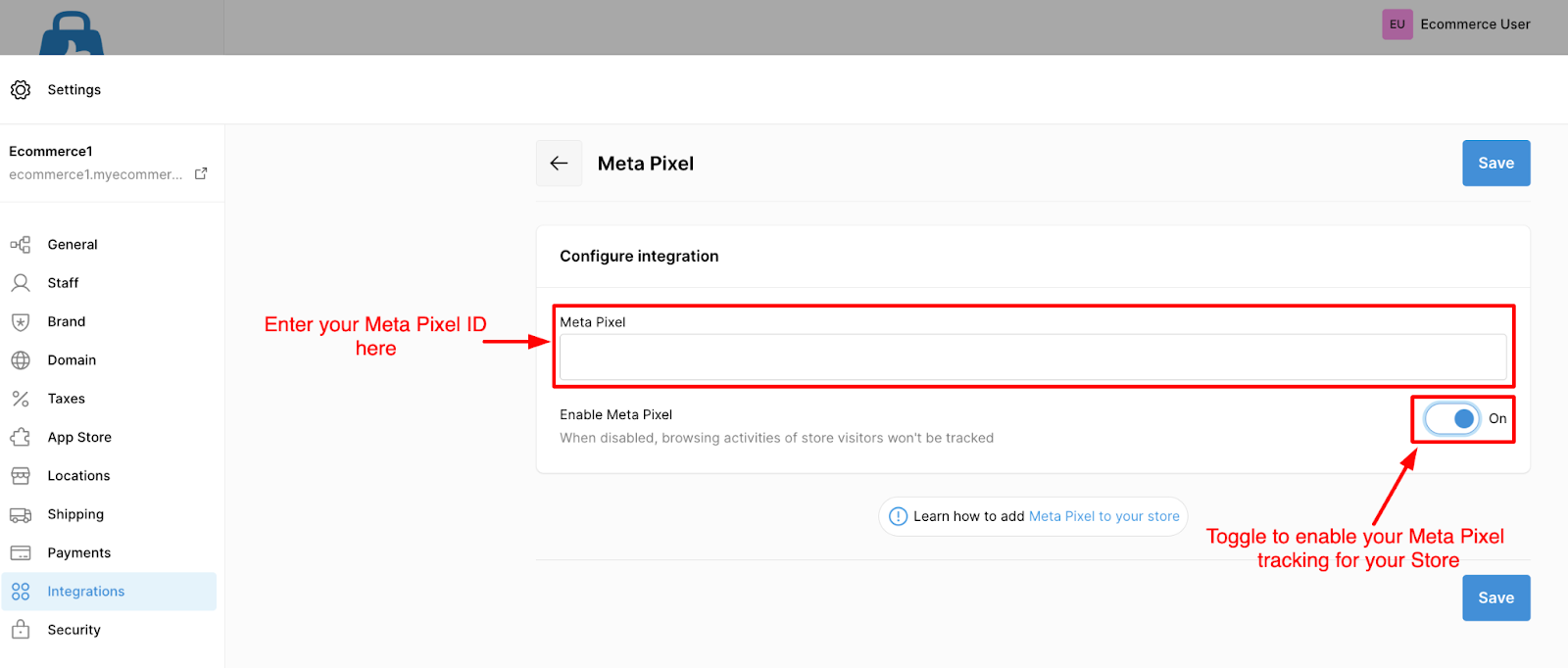
- Log in to your eCommerce Admin Panel.
- Navigate to Settings → Integrations.
- Click the Add button next to Meta Pixel.
- Enter your Meta (Facebook) Pixel ID in the input box.
- Click Save.
Your Meta Pixel is now successfully connected to your store—no coding required.
How to access your Meta Pixel ID
To find your Pixel ID, follow these steps:
- Open Business Settings in Meta Business Manager.
- Select your Business Account.
- Navigate to Data Sources → Pixels.
- Your Pixel ID appears in parentheses under the Pixel name.
Copy this ID and paste it into your eCommerce admin panel.
How to create you Meta Pixel ID
If you haven’t already created a Meta Pixel, follow these steps:
- Open Facebook Ads Manager.
- Click the All Tools (grid) icon in the left panel and select Events Manager.
- In Events Manager, click Connect Data Sources (green “+” icon).
- Choose Web and click Get Started.
- In “Set up Web Events,” select Facebook Pixel and click Connect.
- Enter a name for your Pixel.
- Add your eCommerce store URL.
- Click Continue to finish the setup.
You’ve now created your Meta Pixel, formatted as: Pixel ID: XXXXXXXXXXXXXXX
Verify your Meta Pixel Setup
After adding the Pixel, verification may take a few minutes.
To confirm your pixel is working:
- Go to Events Manager on Facebook.
- Open the Test Events tab to check if events from your store are being received.
- If there are issues, review them under the Diagnostics tab.
Ensuring your Pixel is functioning properly is crucial for accurate tracking and ad optimization.