-
Integrations
- Articles coming soon
-
Marketing
-
- Advertising white-label eCommerce solution to your customer ecosystem
- Advertising compliance and brand usage guidelines for partners
- How to create high-converting advertisements for your eCommerce platform
- How to run advertising campaigns to attract online merchants and resellers
- How to measure advertising performance and generate qualified merchant leads
-
- How to promote your eCommerce platform using consistent branding
- White-Label eCommerce branding strategy for partners
- Crafting effective brand messaging for eCommerce platforms
- Positioning your eCommerce platform for different merchant segments
- Maintaining brand consistency across marketing channels
-
- Creating High-Impact eCommerce marketing assets for partners
- Designing eCommerce sales decks that convert merchants
- Creating eCommerce landing pages that convert traffic into merchants
- Creating eCommerce case studies that build trust and close deals
- Creating Email campaigns that drive eCommerce adoption
-
-
Partner Hub
-
- Articles coming soon
-
- Articles coming soon
-
-
Sales
-
- Articles coming soon
-
- Articles coming soon
-
- Articles coming soon
-
- Articles coming soon
-
- Articles coming soon
-
-
Technical and Support
-
- Articles coming soon
-
- Articles coming soon
-
- Articles coming soon
-
- Articles coming soon
-
- Articles coming soon
-
- Articles coming soon
-
-
-
-
-
-
-
- Payment methods at eCommerce Store
- Setting up Stripe Payment Gateway
- Setting up Paypal in your Online Store
- Setting up CashFree Gateway
- Setting up RazorPay Gateway
- Setting up Paystack gateway
- Setting up Flutterwave Gateway
- Setting up Mercado Pago Gateway
- Setting up Mamo Pay Gateway
- Setting up Yoco Gateway
- Setting up Nets Easy Gateway
- Setting up Vipps Gateway
- Setting up Mollie Gateway
- Setting up Epoint Gateway
- Setting up Iyzico Gateway
- Setting up Payriff Gateway
- Setting up Crypto Payments through Nicky
- What is Cash on Delivery?
- Show Remaining Articles (3) Collapse Articles
-
- How to create an analytics account?
- Connecting Google Analytics to your eCommerce store
- Connecting Meta Pixel to your eCommerce store
- Connecting Tik Tok Pixel to your eCommerce store
- Connecting Google Tag Manager to your eCommerce store
- Managing product reviews & ratings in your eCommerce store
- Using marketing automation to drive urgency and social proof
- Setting up your LLMs.txt integration to boost your AI search visibility
- Automating manual order fulfilment and live tracking with Shiprocket
- Automating search engine discoverability with dynamic sitemaps
- Automate, optimise, scale: Building your Google shopping product feed
- How to sync your product catalog with meta ads to drive more sales
-
- Articles coming soon
-
- Articles coming soon
-
- Articles coming soon
-
Print
Posted
Updated
ByeCommerce Admin
Understanding Discount Types: Percentage, Amount, and Free Shipping
The platform supports three key types of discounts — each tailored for different marketing goals.
| Discount Type | Description | Best Used For |
|---|---|---|
| Percentage | Applies a percentage-based reduction (Ex: 10%) on total or selected products | Sitewide or Category Promotions |
| Fixed Amount | Deducts a specific amount (Ex: $10 off). | Order-level or Product-based campaigns |
| Free Shipping | Waives shipping costs on qualifying orders. | Loyalty campaigns or cart-value based offers. |
Tip: Combine different types strategically. For instance, use Free Shipping + 10% off to increase average order value.
How to configure a Percentage-Based Discount (with Maximum Cap and Validity Period)
A percentage-based discount reduces order value by a specified percentage and can include a maximum discount cap to control cost impact.
- Navigate from % Discount → Discount Code, and click Create Discount.
- Select Percentage Discount under “Select Discount Type”.
- Enter the Discount Percentage (e.g., 10%).
- Set a Maximum Cap (e.g., “Max $25 discount per order”).
- Define Validity Period → set start and end dates.
- Add Conditions if applicable (cart value, Coupon usage per customer, number of products in cart).
- Save and test before publishing.
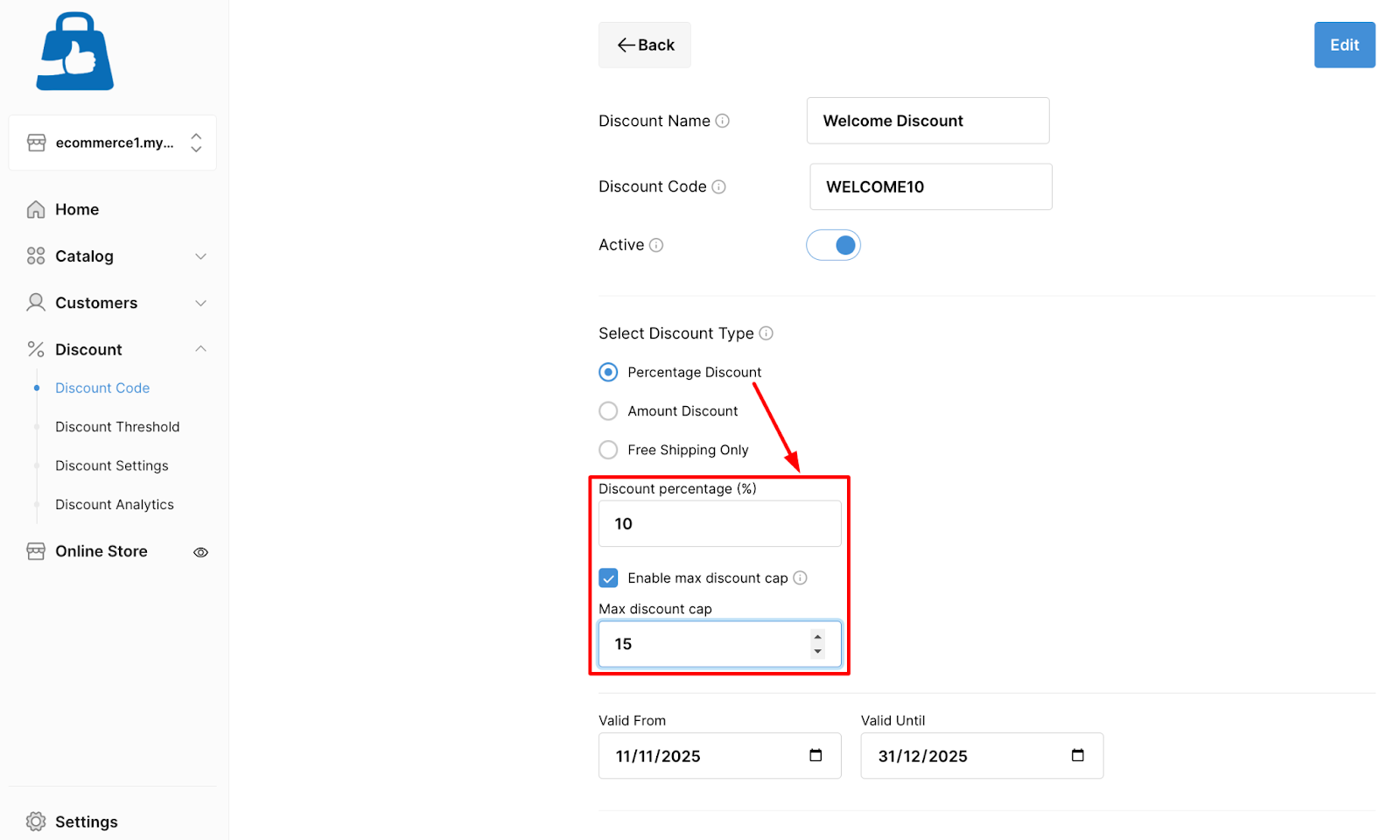
Example: Get 10% off (up to $25 – Max Cap) on all electronics between Nov 10–20.
OUTPUT: This will give discounted amount based on the cart value UP TO $25.
How to set up a Fixed Amount Discount for Products or Orders
Fixed amount discounts provide a flat reduction from the total order or selected products, regardless of quantity or price.
- Navigate from % Discount → Discount Code, and click Create Discount.
- Choose Amount Discount under “Select Discount Type”.
- Enter the Discount Value (e.g., $25).
- Choose whether it applies to Entire Order or Specific Products.
- Add Conditions if needed (e.g., minimum cart value).
- Save and activate the discount.
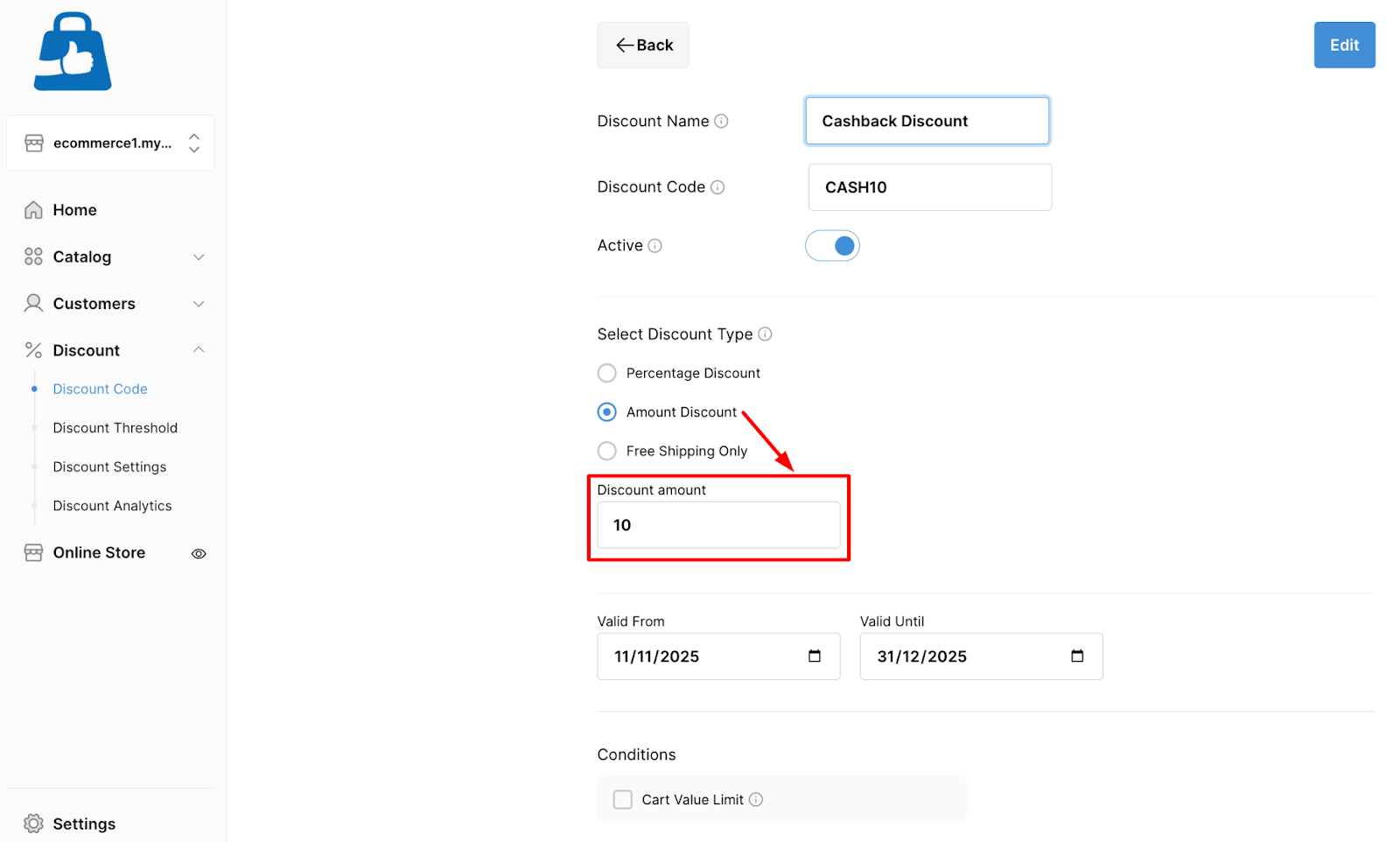
Example: Get $25 off orders above $100.
OUTPUT: This will give a flat discount of $25 based on the cart value.
How to offer Free Shipping Discounts with Custom Conditions
Free shipping promotions encourage customers to complete purchases without worrying about shipping costs.
- Navigate from % Discount → Discount Code, and click Create Discount.
- Choose Free Shipping as the discount type.
- Define Cart Value Conditions (e.g., Free shipping on orders above $50).
- Save and activate.
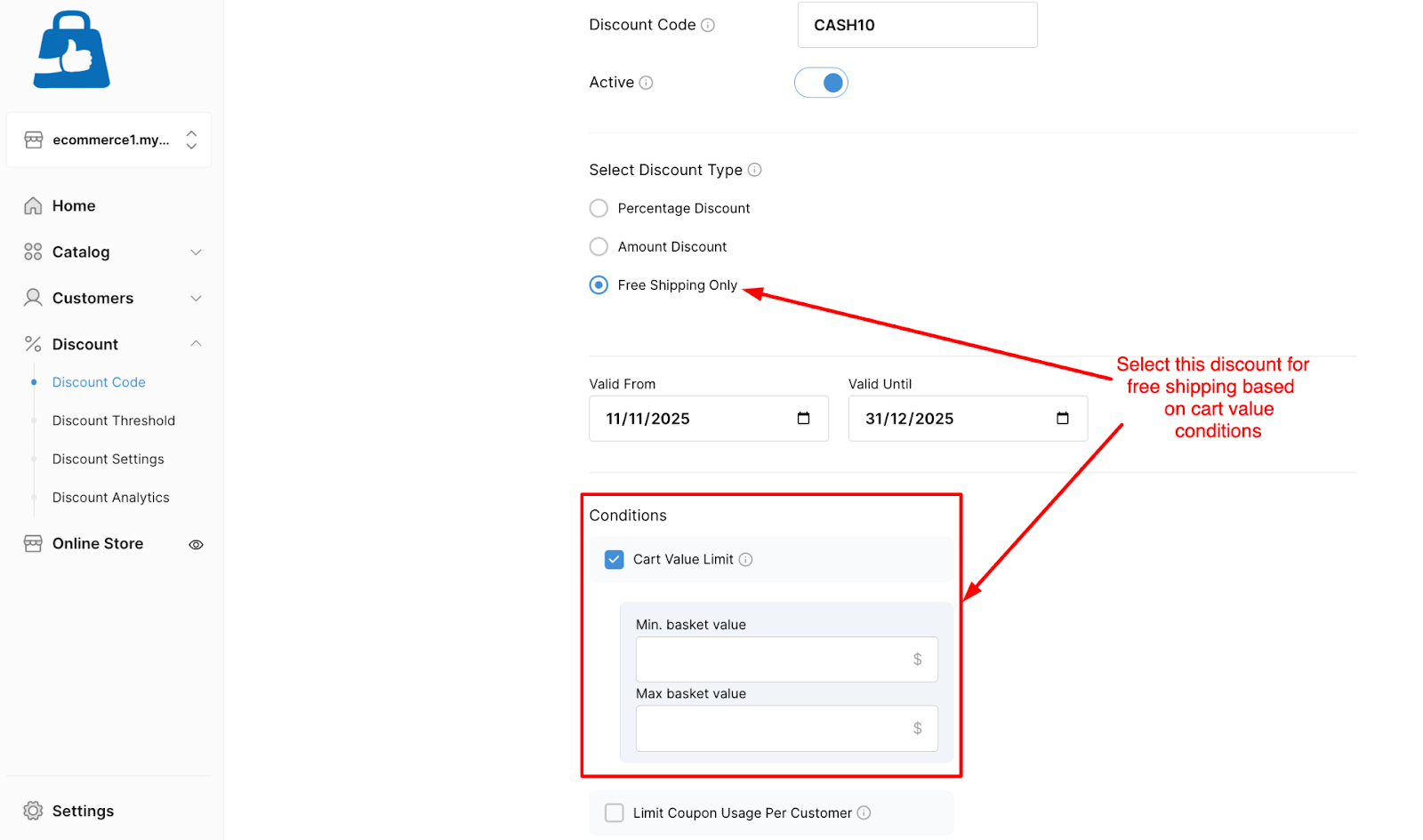
Tip: You can limit free shipping to certain customer groups or campaign periods.