-
Integrations
- Articles coming soon
-
Marketing
-
- Advertising white-label eCommerce solution to your customer ecosystem
- Advertising compliance and brand usage guidelines for partners
- How to create high-converting advertisements for your eCommerce platform
- How to run advertising campaigns to attract online merchants and resellers
- How to measure advertising performance and generate qualified merchant leads
-
- How to promote your eCommerce platform using consistent branding
- White-Label eCommerce branding strategy for partners
- Crafting effective brand messaging for eCommerce platforms
- Positioning your eCommerce platform for different merchant segments
- Maintaining brand consistency across marketing channels
-
- Creating High-Impact eCommerce marketing assets for partners
- Designing eCommerce sales decks that convert merchants
- Creating eCommerce landing pages that convert traffic into merchants
- Creating eCommerce case studies that build trust and close deals
- Creating Email campaigns that drive eCommerce adoption
-
-
Partner Hub
-
- Articles coming soon
-
- Articles coming soon
-
-
Sales
-
- Articles coming soon
-
- Articles coming soon
-
- Articles coming soon
-
- Articles coming soon
-
- Articles coming soon
-
-
Technical and Support
-
- Articles coming soon
-
- Articles coming soon
-
- Articles coming soon
-
- Articles coming soon
-
- Articles coming soon
-
- Articles coming soon
-
-
-
-
-
-
-
- Payment methods at eCommerce Store
- Setting up Stripe Payment Gateway
- Setting up Paypal in your Online Store
- Setting up CashFree Gateway
- Setting up RazorPay Gateway
- Setting up Paystack gateway
- Setting up Flutterwave Gateway
- Setting up Mercado Pago Gateway
- Setting up Mamo Pay Gateway
- Setting up Yoco Gateway
- Setting up Nets Easy Gateway
- Setting up Vipps Gateway
- Setting up Mollie Gateway
- Setting up Epoint Gateway
- Setting up Iyzico Gateway
- Setting up Payriff Gateway
- Setting up Crypto Payments through Nicky
- What is Cash on Delivery?
- Show Remaining Articles (3) Collapse Articles
-
- How to create an analytics account?
- Connecting Google Analytics to your eCommerce store
- Connecting Meta Pixel to your eCommerce store
- Connecting Tik Tok Pixel to your eCommerce store
- Connecting Google Tag Manager to your eCommerce store
- Managing product reviews & ratings in your eCommerce store
- Using marketing automation to drive urgency and social proof
- Setting up your LLMs.txt integration to boost your AI search visibility
- Automating manual order fulfilment and live tracking with Shiprocket
- Automating search engine discoverability with dynamic sitemaps
- Automate, optimise, scale: Building your Google shopping product feed
- How to sync your product catalog with meta ads to drive more sales
-
- Articles coming soon
-
- Articles coming soon
-
- Articles coming soon
-
Print
Posted
Updated
ByeCommerce Admin
Understanding Discount Conditions (Cart Value, Product Selection, and Customer Groups)
Discount conditions define when and how discounts apply — ensuring promotions align with business goals.
| Condition Type | Description | Example |
|---|---|---|
| Cart Value | Applies discount only if the cart value meets the minimum amount. | 10% off on orders above $100. |
| Product Selection | Restrict discounts to specific items or categories | 20% off on Apparels. |
| Customer Groups | Target loyal or new customers. | New customers get extra 5% |
How to set Cart-Value based Discounts & Conditions
Cart-value discounts trigger automatically when the customer’s total order value meets the defined threshold.
- Navigate from % Discount → Discount Code, and click Create Discount.
- Select your preferred Discount Type.
- Under Conditions, you can set the required conditions:
- Set the Minimum basket Value (Ex. $100) for Cart Value Limit.
- Set the Limit Coupon Usage Per Customer (Ex. 1,2,3…) for restricting the coupon usage per customer.
- Set the Limit the number of products in your Cart (Ex. Maximum number of Products in the basket = 5).
- Click Edit to activate the discount.
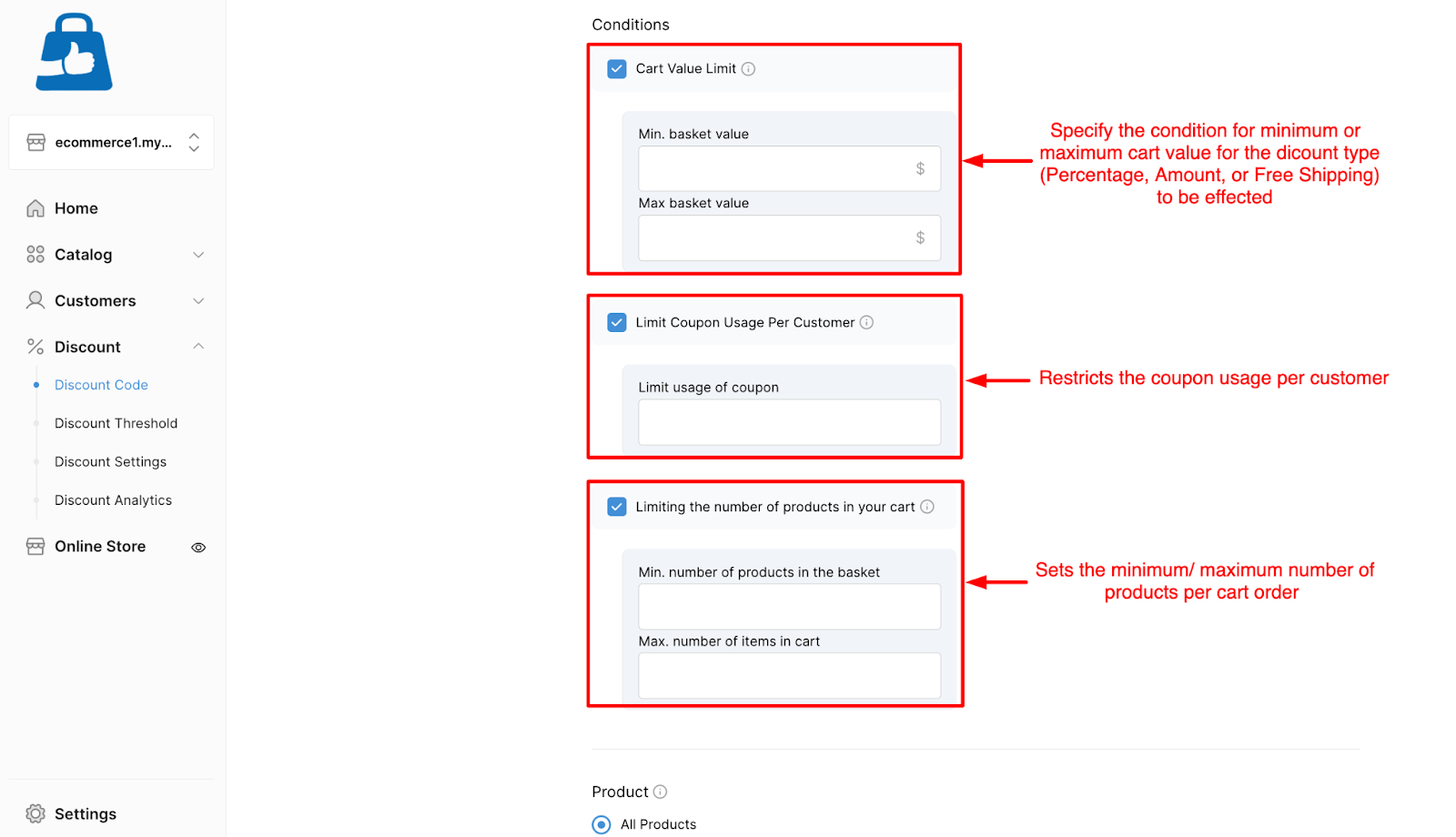
Example: Save 15% when you spend $150 or more.
How to create Product-Wise Coupon Code in your eCommerce Store
Product-wise coupons apply only to specific products or product collections, allowing targeted promotions.
- Navigate from % Discount → Discount Code, and click Create Discount.
- Select Discount Type (Percentage or Amount).
- Under Product, select products, or products from selected collections, or only selected products.
- Add Start/End Dates and click Edit.
- Share the coupon code with customers.
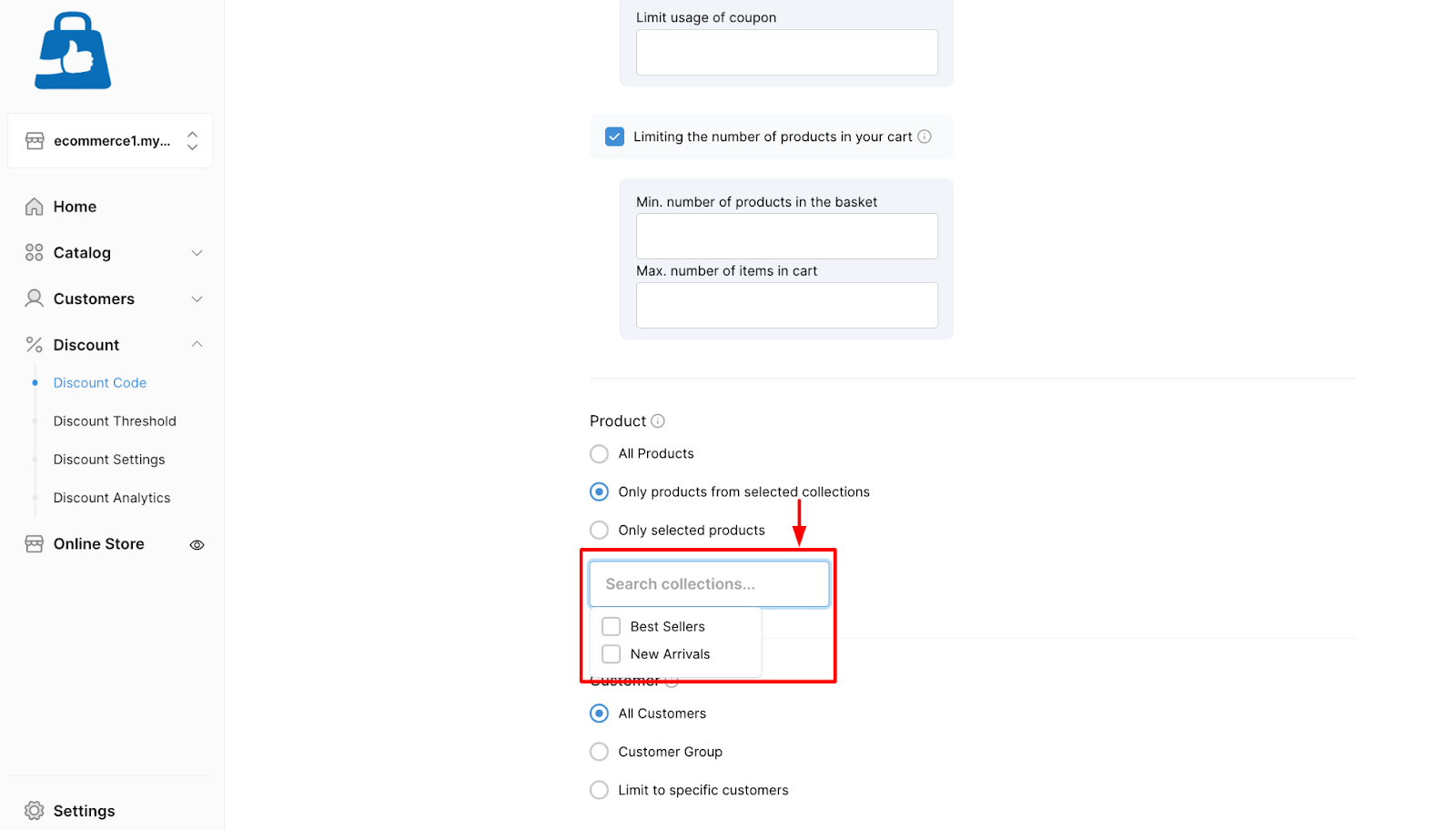
Tip: Pair product-wise discounts with “Buy More, Save More” campaigns to boost sales volume.
How to restrict Discounts to Specific Customers or Customer Groups
Limiting discounts to customer groups allows personalized promotions like VIP offers or first-time buyer rewards.
- Navigate from % Discount → Discount Code, and click Create Discount.
- Go to Customer and choose Customer Groups or limit to specific customers.
- Save and activate.
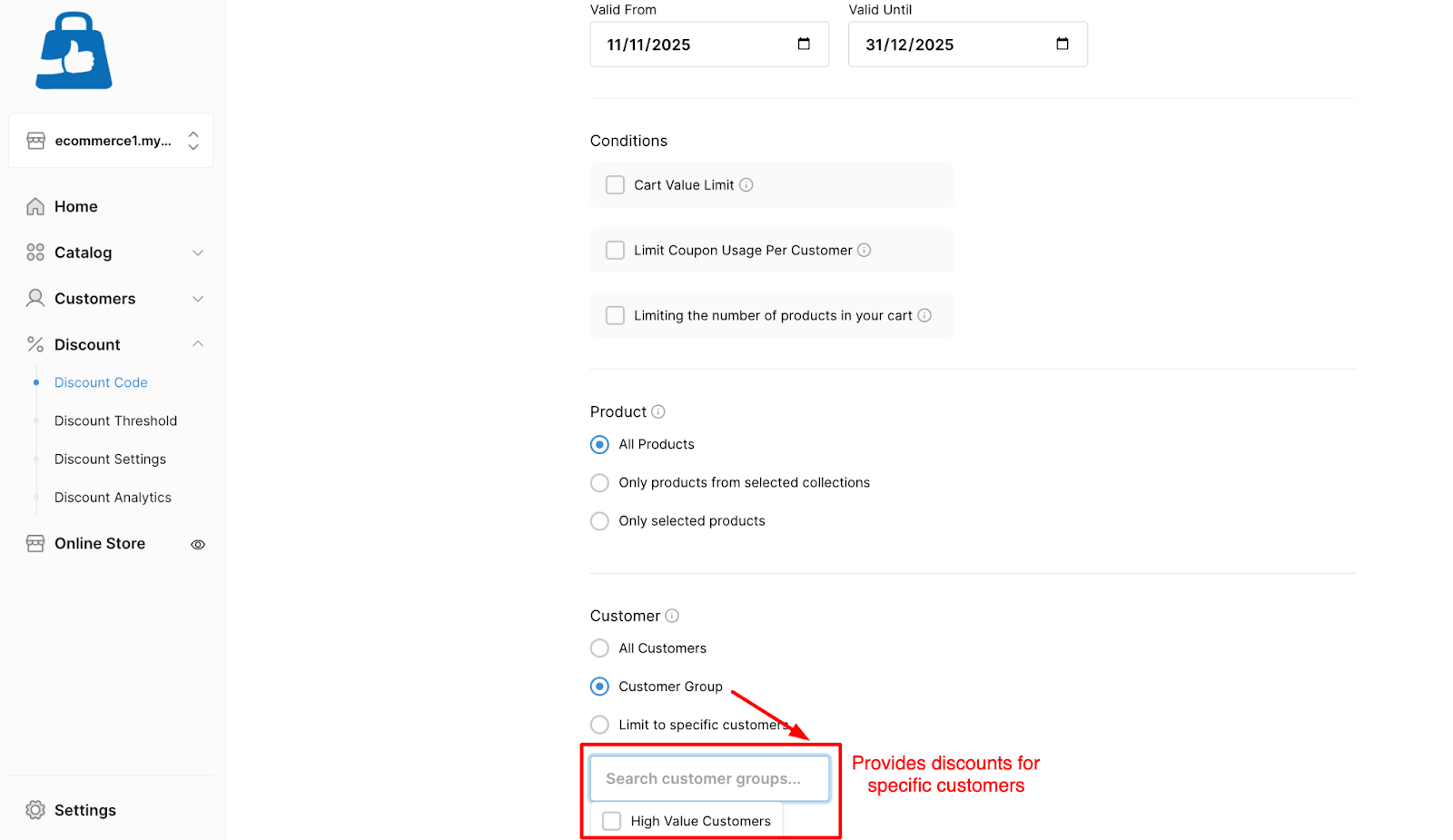
Example: Loyalty members get 15% off sitewide.