
-
Integrations
- Articles coming soon
-
Marketing
-
- Advertising white-label eCommerce solution to your customer ecosystem
- Advertising compliance and brand usage guidelines for partners
- How to create high-converting advertisements for your eCommerce platform
- How to run advertising campaigns to attract online merchants and resellers
- How to measure advertising performance and generate qualified merchant leads
-
- How to promote your eCommerce platform using consistent branding
- White-Label eCommerce branding strategy for partners
- Crafting effective brand messaging for eCommerce platforms
- Positioning your eCommerce platform for different merchant segments
- Maintaining brand consistency across marketing channels
-
- Creating High-Impact eCommerce marketing assets for partners
- Designing eCommerce sales decks that convert merchants
- Creating eCommerce landing pages that convert traffic into merchants
- Creating eCommerce case studies that build trust and close deals
- Creating Email campaigns that drive eCommerce adoption
-
-
Partner Hub
-
- Articles coming soon
-
- Articles coming soon
-
-
Sales
-
- Articles coming soon
-
- Articles coming soon
-
- Articles coming soon
-
- Articles coming soon
-
- Articles coming soon
-
-
Technical and Support
-
- Articles coming soon
-
- Articles coming soon
-
- Articles coming soon
-
- Articles coming soon
-
- Articles coming soon
-
- Articles coming soon
-
-
-
-
-
-
-
- Payment methods at eCommerce Store
- Setting up Stripe Payment Gateway
- Setting up Paypal in your Online Store
- Setting up CashFree Gateway
- Setting up RazorPay Gateway
- Setting up Paystack gateway
- Setting up Flutterwave Gateway
- Setting up Mercado Pago Gateway
- Setting up Mamo Pay Gateway
- Setting up Yoco Gateway
- Setting up Nets Easy Gateway
- Setting up Vipps Gateway
- Setting up Mollie Gateway
- Setting up Epoint Gateway
- Setting up Iyzico Gateway
- Setting up Payriff Gateway
- Setting up Crypto Payments through Nicky
- What is Cash on Delivery?
- Show Remaining Articles (3) Collapse Articles
-
- How to create an analytics account?
- Connecting Google Analytics to your eCommerce store
- Connecting Meta Pixel to your eCommerce store
- Connecting Tik Tok Pixel to your eCommerce store
- Connecting Google Tag Manager to your eCommerce store
- Managing product reviews & ratings in your eCommerce store
- Using marketing automation to drive urgency and social proof
- Setting up your LLMs.txt integration to boost your AI search visibility
- Automating manual order fulfilment and live tracking with Shiprocket
- Automating search engine discoverability with dynamic sitemaps
- Automate, optimise, scale: Building your Google shopping product feed
- How to sync your product catalog with meta ads to drive more sales
-
- Articles coming soon
-
- Articles coming soon
-
- Articles coming soon
-
Bulk import and export of products
Manually adding products works well when you’re just starting out. As your business grows, however, efficiency becomes critical. The “Bulk Import” feature allows you to upload hundreds or even thousands of products at once using a single Excel spreadsheet.
This article walks you through preparing your data, understanding mandatory requirements, uploading your catalog, and fixing any errors that may occur during the import process.
Phase 1: Preparing your product data
The success of your bulk import depends entirely on how accurately your spreadsheet is formatted.
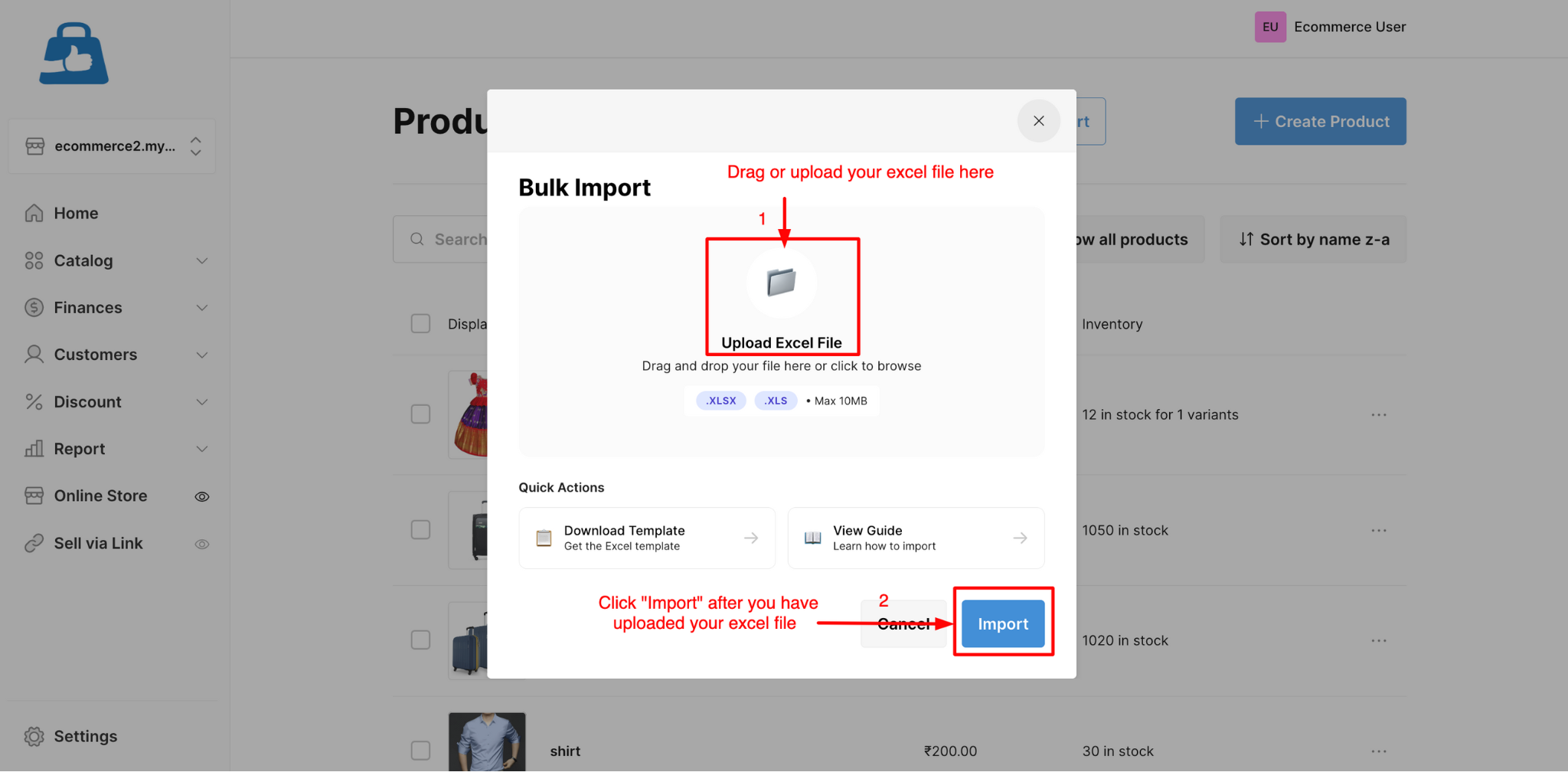
- Navigate to Catalog → Product in your admin panel and click the “Bulk Import” button.
- Download the template: Inside the Bulk Import pop-up window, click “Download Template”.
- Fill in mandatory fields: Open the Excel file and complete all columns marked in red. These are required for every product row (for example: Product title, Description, Collection, Status, Price, and SKU).
- Red fields: Mandatory for every row
- Black fields: Optional, but recommended for better SEO and customer experience

Phase 2: Uploading your catalog
Once your spreadsheet is ready and saved in .xlsx or .xls format, you can upload it to your store.
- Drag and drop your file into the “Upload Excel File” area or click to browse your computer.
- Ensure the file size does not exceed 10MB.
- Click the blue “Import” button to start the upload.
Phase 3: Reviewing results and fixing errors
After clicking Import, the system processes your file and displays a real-time status report.
1. Checking the success count
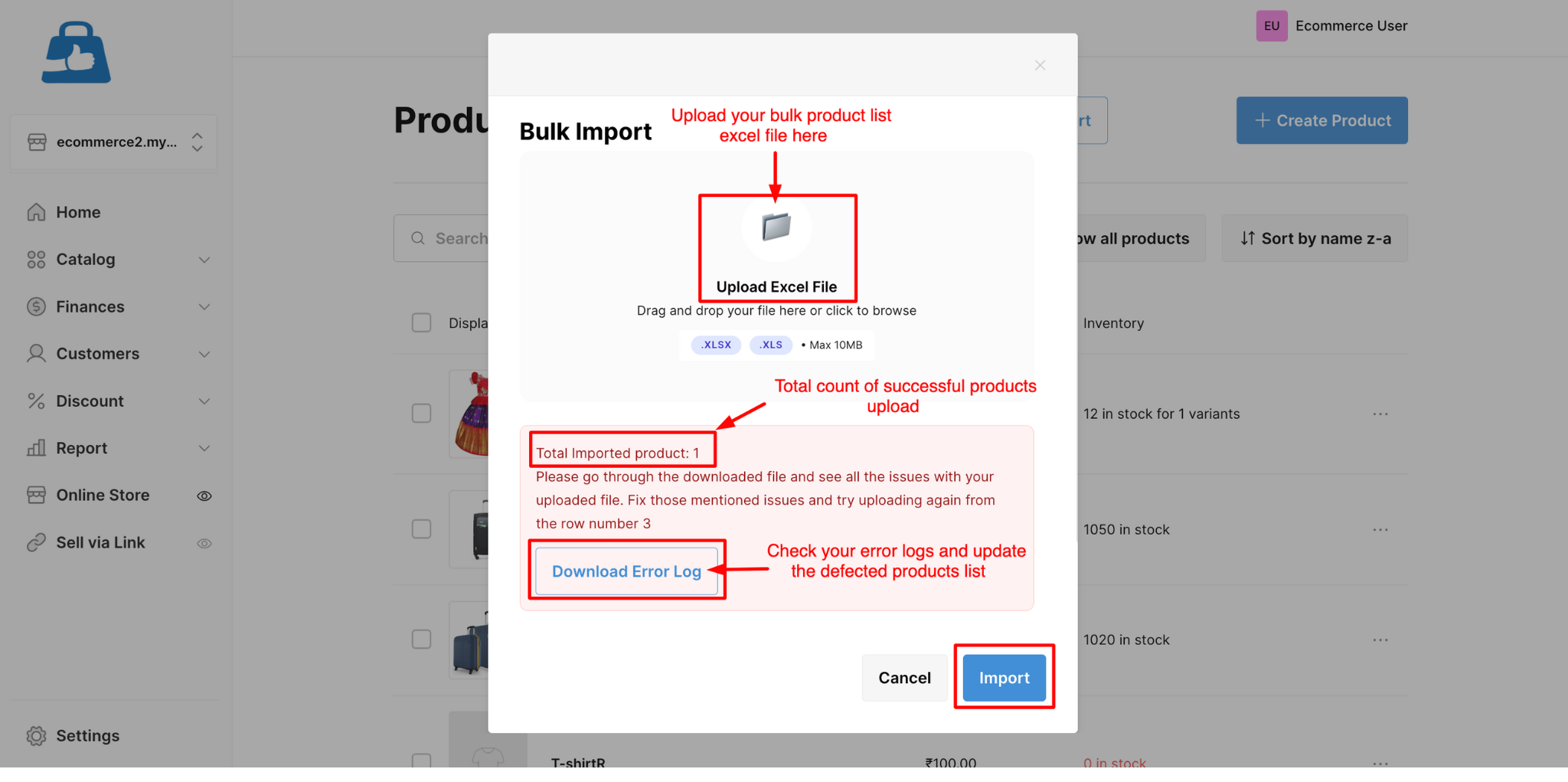
You’ll see a message such as “Total Imported product: [X]”. These products are now live in your store.
2. Handling the error log
If the number of imported products is lower than the total rows in your file, some products contain errors.
- Click the “Download Error Log” button.
- Open the file to view detailed error messages for each failed row (Ex.“Missing mandatory field: Price”.
- Fix the errors in your spreadsheet.
- Unique SKUs: Ensure every product has a unique SKU. If a SKU matches an existing product, the system may overwrite the existing data.
- No special characters: Avoid special symbols in Price or Stock columns. Use plain numeric values only.