
Set up your SMTP Gateway
The SMTP (Simple Mail Transfer Protocol) settings under the Store Settings section are used to enable store email notifications. These notifications are sent from your store’s communication email address (the one you configure here).
Instead of using your direct email password — which is not secure — we use SMTP authentication. This ensures safe and reliable delivery of your store’s automated emails such as order confirmations, password resets, and other notifications.
When to Use SMTP Settings
You should configure SMTP when:
- You want to send order confirmations through your store email address.
- If you are using your personal gmail email id or google workspace email id then, using your real email password is not recommended. Always use an App Password for security purposes.
How to Create an App Password for Gmail or Google Workspace
App Passwords are unique 16-digit codes that allow third-party apps (like your store) to send emails securely using your Gmail account. Below are the steps to create one for both Personal Gmail and Google Workspace accounts.
For Personal Gmail Accounts
Step 1: Enable 2-Step Verification
- Log in to your Google Account at https://myaccount.google.com.
- Navigate to Security from the left menu.
- Under “Signing in to Google,” click 2-Step Verification.
- Follow the on-screen steps to enable 2FA (using phone or authenticator).
Step 2: Generate an App Password
- Once 2-Step Verification is enabled, return to Security.
- Click on App Passwords (just below the 2-Step Verification option).
- Sign in again to verify your identity.
- Under Select App, choose Other (Custom Name).
- Type a name like “Store SMTP” and click Generate.
- Google will display a 16-character App Password.
🔒 Save this App Password securely. You won’t be able to view it again later.
For Google Workspace (Business Accounts)
Step 1: Enable 2-Step Verification (Admin)
- Go to your Google Admin Console: https://admin.google.com.
- Navigate to Security → Authentication → 2-Step Verification.
- Ensure 2-Step Verification is enabled for all users who need to send emails.
Step 2: User Generates App Password
- Each user (store email account) must go to their Google Account Settings → Security.
- Enable 2-Step Verification if not already done.
- Once enabled, open App Passwords.
- Choose Other (Custom Name) → type “Store SMTP” → click Generate.
- Copy the generated 16-digit App Password.
Use this App Password in your SMTP Password field inside your store settings.
Steps to Configure SMTP in Store Settings
Step 1: Go to Store Settings
- Log in to your Admin Panel.
- Navigate to Settings → General Settings → Store name, email, description
- Under Store contact email, enter your store communication email address and click Save.
- From the next SMTP setting section enter the specific details based on your email id services provider. (We have mentioned the service provider SMTP setting for your reference below under table)
- Add SMTP host, SMTP password, select port number and encryption setting from respective fields and save it.
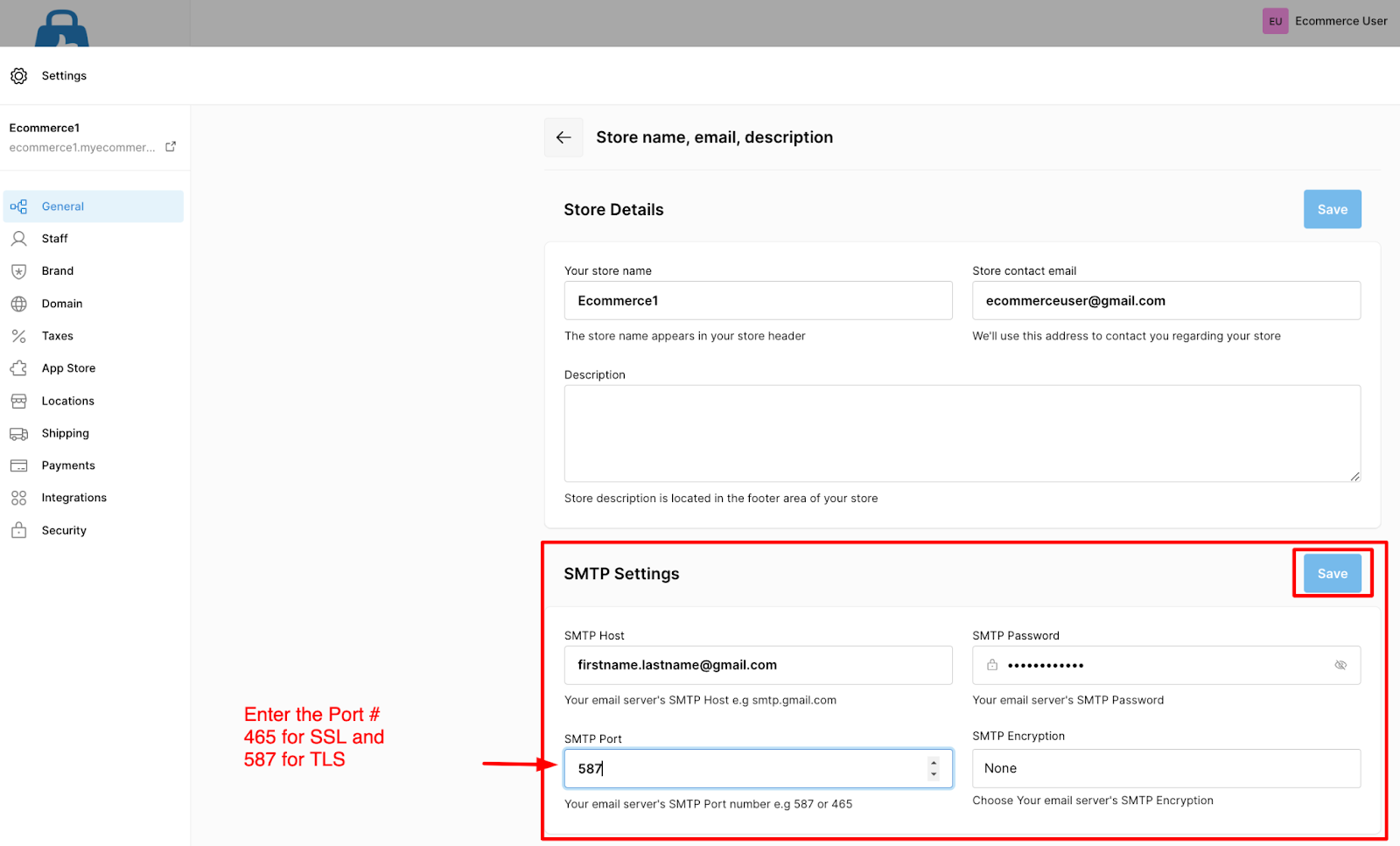
Example for personal Gmail email ID:
| Setting | Value |
|---|---|
| SMTP Host | smtp.gmail.com |
| SMTP Port | 465 (SSL) or 587 (TLS) |
| Encryption | SSL or TLS |
| SMTP Password | Your 16-digit App Password (no spaces) |
| Email Provider | SMTP Server (Host) | Port (SSL/TLS) | Port (STARTTLS) | Encryption Type | Password | Notes / Remarks |
|---|---|---|---|---|---|---|
| Gmail / Google Workspace | smtp.gmail.com | 465 (SSL) | 587 (TLS) | SSL / TLS | App Password | Requires App Password if two-step verification is enabled. |
| Yahoo Mail | smtp.mail.yahoo.com | 465 (SSL) | 587 (TLS) | SSL / TLS | App Password | Must generate App Password via Yahoo Account Security page. |
| Rediffmail | smtp.rediffmail.com | 465 (SSL) | — | SSL | Account Password | Works only if SMTP access is enabled in account settings. |
| Outlook / Hotmail / Live | smtp.office365.com or smtp.live.com | — | 587 (TLS) | TLS | Account Password / App Password | App Password required if MFA is enabled. |
| Office 365 (Business) | smtp.office365.com | — | 587 (TLS) | TLS | Account Password / App Password | Enable “Authenticated SMTP” in Microsoft 365 Admin Center. |
| iCloud Mail | smtp.mail.me.com | 587 (TLS) | — | TLS | App Password | Requires App Password if 2FA is enabled. |
| Zoho Mail | smtp.zoho.com | 465 (SSL) |
587 (TLS) | SSL / TLS | Account Password / App Password | App Password required if 2FA is enabled. |