
Automate, optimise, scale: Building your Google shopping product feed
Google shopping campaigns are one of the highly profitable acquisition channels in eCommerce because they list your products with images, pricing, and reviews directly at the top of Google search results. Shoppers clicking these ads have exceptionally high purchase intent.
However, manually maintaining a product feed to run these ads is prone to human error, often leading to wasted ad spend on out of stock items or suspended Google Merchant Center accounts due to incorrect pricing. By automating your Google product feed, your eCommerce solution dynamically syncs your live catalog data. This ensures your ads are always accurate, protecting your ad budget and maximizing your Return on Ad Spend (ROAS).
Understanding the feed engine
The automated product feed translates your storefront inventory into the highly structured data format required by Google’s advertising network. Here is how the module works to keep your campaigns running flawlessly:
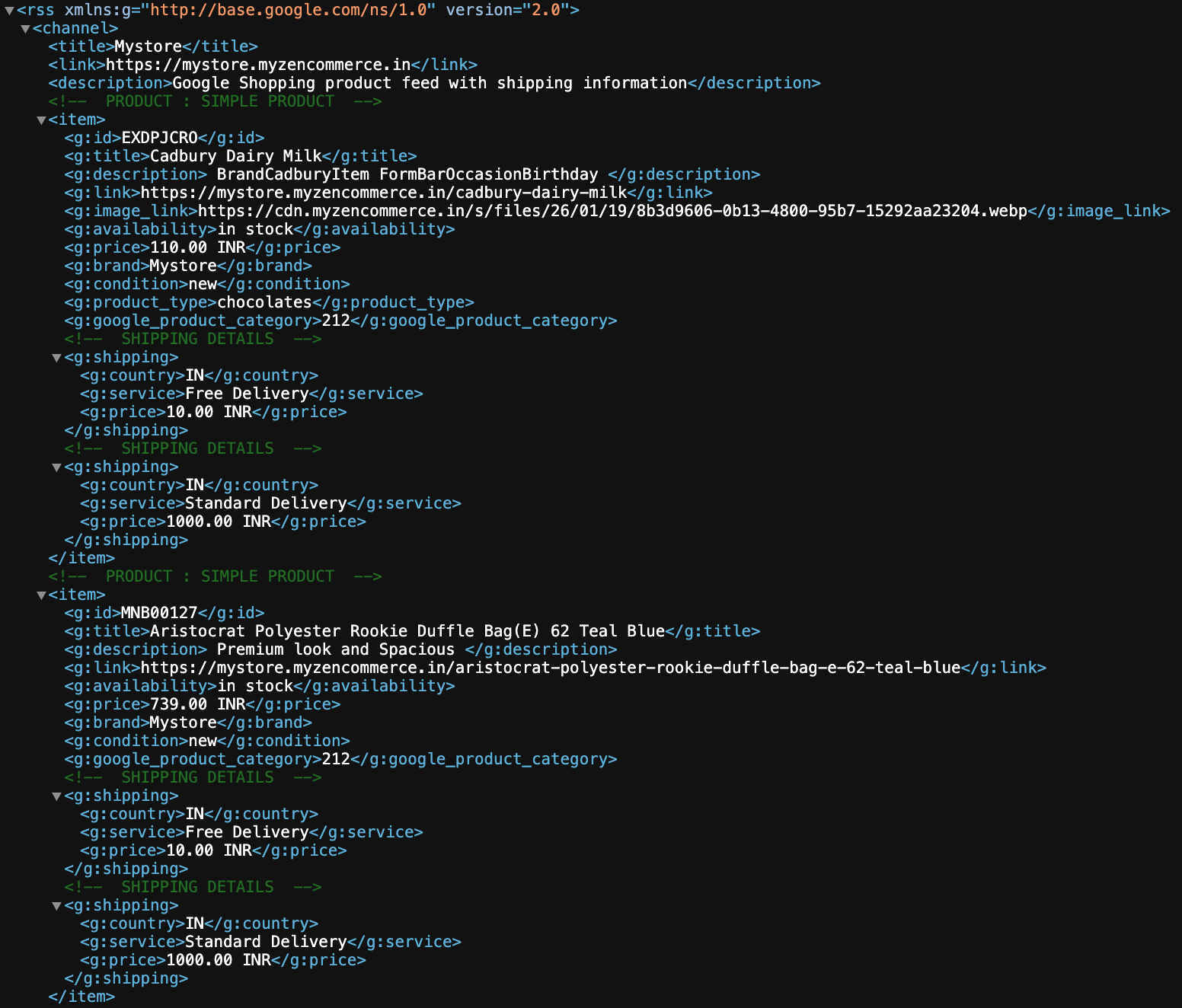
- Dynamic data compilation: The engine automatically extracts your product titles, descriptions, pricing, variant availability, and images, formatting it precisely to Google’s XML specifications.
- Shipping rule integration: Unlike basic XML exports, this specialized feed generator automatically embeds your configured shipping information directly into the data output, which is a mandatory requirement for Google Shopping approval.
- Total product sync tracking: Similar to the sitemap module, a live “Total product sync” metric displays exactly how many valid products have been successfully bundled into your Google feed.
- Live output verification: The “View feed” link provides instant access to the raw feed URL, which is exactly what you will provide to Google to establish the continuous catalog sync.
Generating your Google feed
Creating the data connection between your storefront and Google takes only a few clicks. Follow these steps to generate your active feed URL:
- Open your store admin panel and go to Settings → Integrations.
- Scroll down the page to find the block labeled Google Product Feed.
- Click the “Generate” button. The system will compile your catalog and shipping rules, subsequently updating the “Total product sync” metric to confirm the number of active products included.
- Click the “View Feed” link. This will open the raw feed file in a new tab. Copy the complete URL from your browser’s address bar, as this is the link you will submit to your Google Merchant Center account.
Optimizing for the algorithm
Generating the feed is the technical bridge, but optimizing your catalog data determines how often your ads actually appear. Use these best practices to scale your Google Shopping visibility:
Establish scheduled fetches in Google Merchant Center
Do not upload the feed as a static file. When you set up your Google Merchant Center account, choose the “Scheduled fetch” option and paste the URL you copied from the “View Feed” link. Set the fetch schedule to occur daily. This ensures Google pulls your latest inventory counts and price changes automatically every 24 hours.
Prioritize Barcodes and GTINs
Google’s algorithm relies heavily on Global Trade Item Numbers (GTINs) or standard barcodes to group identical products and compare prices. Ensure your individual product variants in your storefront admin panel have their barcode fields filled out accurately. Products missing valid GTINs are frequently deprioritized or entirely rejected by Google Shopping.
Front load SEO keywords in product titles
Google Shopping does not use traditional keywords for targeting; it scans your product titles and descriptions. Ensure the most important identifiers (Brand, Gender, Product Type, Color, Size) are front loaded in your product names.
Example: instead of just “The Summer Tee,” use “Men’s Navy Blue Organic Cotton Summer Tee” to capture highly specific search queries.